
What is the Verify Generated List Service?
Verify Generated List is a specialized service that confirms every item on a list is picked, packed, received, or loaded: the right items, in the right quantities, with nothing scanned twice. You generate the barcodes for each list in CodeREADr, so your items don’t need barcodes of their own, and no ERP, WMS, or other integration is required. Key Benefits of CodeREADr’s Verify Generated List service include:
- Verify shipments, orders, and loads against a list, with every scan checked as it happens.
- Generate a list barcode and indexed item labels in minutes, with no backend integration.
- Monitor every list’s progress and discrepancies in real time from the scanning device and the web.
It’s a good fit for receiving (confirm a shipment arrived complete before you sign for it), pick/pack and staging (confirm an order is complete before it ships), and loading (confirm every carton or pallet made it onto the truck).
Explore how Verify Generated List can eliminate incomplete shipments and short receipts today!



Frequently Asked Questions About Verify Generated List
Do my items need their own barcodes?
Yes. Your barcode printing software can generate the barcodes. You can add the indexing to your existing barcode labels, or generate it with label printing software. Alternatively, CodeREADr can generate every barcode you need. Here’s how it works:
- List Barcode: Each list gets one list barcode, built from your List ID (such as a PO, order, shipment, or bill of lading number) and the list total.
- Item Barcodes: Each item on the list gets its own indexed label, so you can verify every unit individually.
- Generator Tab (if using CodeREADr to generate the barcodes): Enter the item list and order number, and the Generator builds all barcode values for you.
Already have a manifest and items with their own barcodes (UPCs or SKUs)? The Verify Manifest specialized service is a better fit.
What’s the difference between Count Only and Full Tracking?
You choose an Accuracy Mode when you add the service:
- Count Only: Verifies that the right number of items is on each list.
- Full Tracking (recommended): Verifies the count and the quantity of each item ID, such as a SKU or part number. The app shows progress for each item ID and for the whole list.
Note: You can’t change the Accuracy Mode after the service is created. To use the other mode, add another Verify Generated List service.
How do I create a list and print the labels with CodeREADr?
On the service’s Generator tab, enter a List ID of up to 64 characters, then add one row per item ID with its quantity. You can also:
- Bulk Import: Paste rows, or choose a CSV/TSV file, with Item ID and quantity columns. Pasting straight from Excel works too.
- No Item Breakdown: Use this when only the total count matters.
- Generate: Create one label for the list plus one for each item, up to 5,000 items per list.
Then export the labels as Barcode Values Only, a Printer CSV for label templates, or an Item Summary picking checklist. Account owners and admins can also export a ZIP of barcode images using the default template or your own branded barcode.
Note: Your list is kept in your browser, not in your CodeREADr account. Keep your exported file for your records.
Can I print the labels from my own WMS, ERP, or label software?
Yes, as long as the barcode values match the service’s format exactly. The Printer CSV export makes a good template. Every barcode on a list must show the list total written the same way (010 and 10 don’t match), and positions run from 1 to the total.
Can I test the service before printing labels?
Yes! Click Load Sample Sheet on the Generator tab to show the list barcode and the first few item barcodes on screen as QR codes. Scan them straight from your monitor with the CodeREADr app to walk through the whole flow. These are real scans, so they also appear on the Monitor tab.
How does scanning work in the app?
App users tap the service, then:
- Scan the list barcode: The app confirms which list is being verified and how many items remain.
- Scan each item: Items can be scanned in any order. Each accepted scan shows a green VALID result with progress for the list and each item ID.
- Finish the list: The last item shows that the list is complete.
To skip scanning the list barcode first, turn on Start List from Item Scan on the Manage tab. App users can then start with any item’s barcode. If the item belongs to the active list, the count continues. If it belongs to a different list, the app asks whether to switch; answer Yes to continue on that list, or No to stay on the current one (the item isn’t counted).
What happens if someone scans the wrong item or scans an item twice?
The app rejects it with a red INVALID result and the reason, such as an item already verified or an item from a different list. Rejected scans are still recorded and appear on the Monitor tab as discrepancies.
Can several people verify the same list at once?
Yes. Multiple app users can work the same list together and share its progress. An item one person has verified counts as a duplicate for everyone else, so nothing is counted twice.
Can my receiving partner or customer do the scanning?
Yes. Create an app user for them and share the sign-in. It can be an email username or a plain username (such as partner-receiving), so they can scan your labels with the CodeREADr app without setting up an account of their own.
Note: Users who sign in with a plain username can’t receive two-factor verification codes.
Can I scan labels that were already printed in another format?
Yes. With Alter Scan Value on the Manage tab, each scanned barcode is rewritten before it’s checked, so you can scan existing labels as long as they’re indexed.
Can I use a hardware scanner instead of the camera?
Yes. Turn on Disable Camera Scan on the Manage tab, so scans come from a hardware scanner or manual entry. For faster scanning, Auto-Next Scan reopens the scanner automatically after each accepted scan.
Does the service work offline?
No. Scans are validated in the cloud as they’re made, so devices need Wi-Fi or cellular data while scanning with this service.
How do I track progress and discrepancies?
The Monitor tab shows every list scanned with the service. You can:
- See each list’s status: Complete, In progress, or stalled (not complete and not scanned for 24 hours).
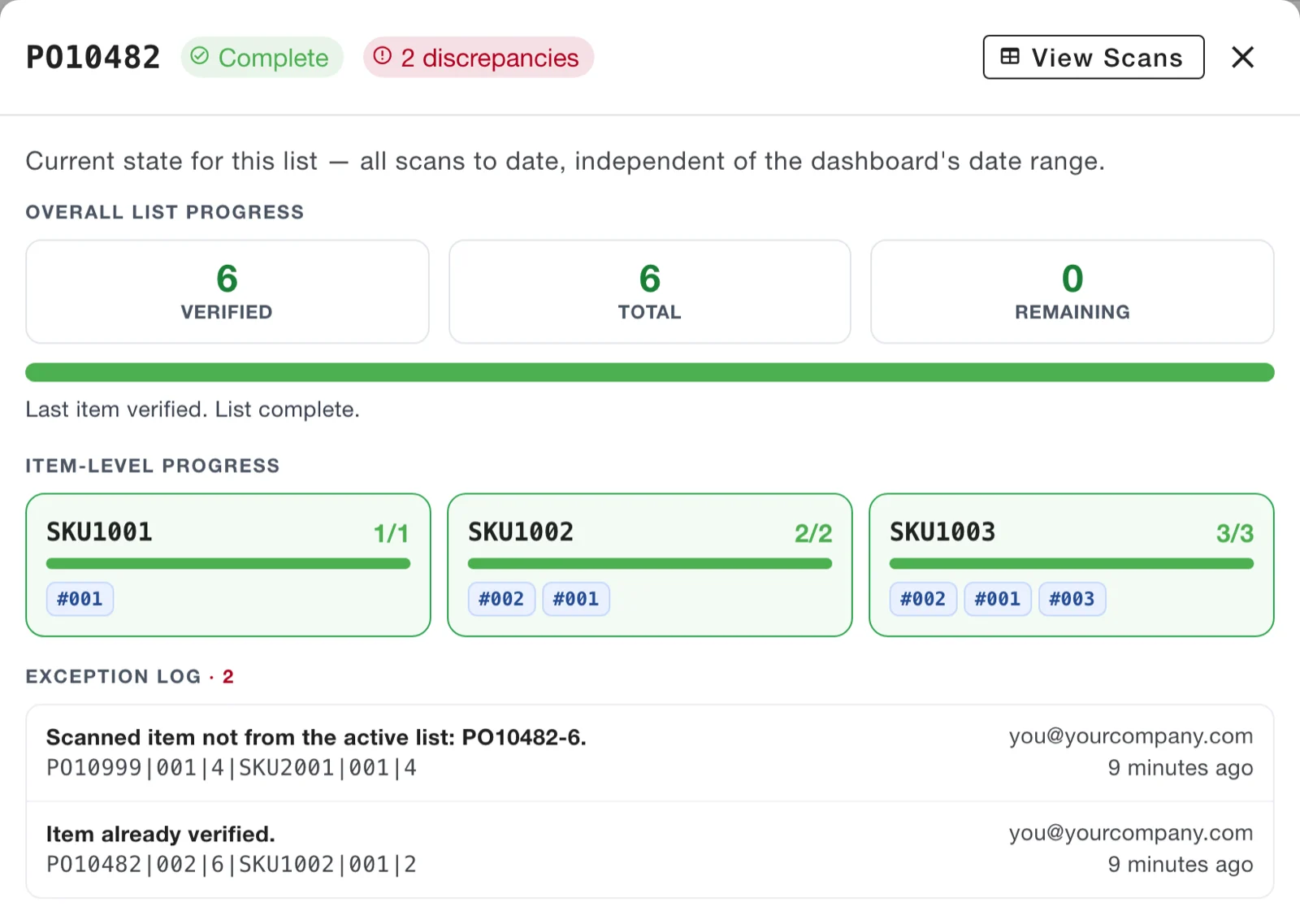
- Review discrepancies by reason, such as Not in this list, Duplicate scan, or Quantity mismatch.
- Open a list for item-level progress, an exception log showing who scanned what and when, and a scan timeline.
On the Scans tab, use Filter by List to view one list’s records, or filter and export scan records for reporting.
Does pricing depend on the number of items scanned?
No. All paid plans include unlimited scans. Pricing is based on the total number of unique devices signed in during a billing period.
Is special hardware required?
No. CodeREADr works with iOS and Android smartphones and tablets as well as dedicated mobile computers. Check the device requirements for CodeREADr here.
What if the app shows an error I don’t recognize?
See the troubleshooting table in the Verify Generated List Specialized Service article for every app message, what it means, and what to do.