
CodeREADr’s Verify Manifest Specialized Service checks a pick, pack, or receipt against a list you already have, using the barcodes already on your items. One manifest barcode carries the whole list, so there’s no database to upload and no ERP, WMS, or other integration to set up.
You build each list on the Generator tab (or in your own system) and print its manifest barcode, for example as a QR code on a packing slip or pick ticket. App users scan the manifest to start, then scan each item’s own barcode, such as its UPC or SKU label. Every scan is checked against the list the moment it’s made: the app shows a green VALID with the list’s progress, or a red INVALID with the reason. From the web, the Monitor tab shows every list and any discrepancies.
It’s a good fit for:
- Pick/pack: confirm an order has the right items, in the right quantities, before it ships.
- Receiving: check a delivery against its packing list or advance ship notice.
Internet connection required. Scans are validated in the cloud as they’re made, so devices need Wi-Fi or cellular data while scanning with this service.
Items don’t have barcodes of their own? Use the Verify Generated List specialized service instead, which generates a barcode for every item.
How it works
- Add the service.
- Build a list on the Generator tab, then print its manifest barcode.
- Choose who scans on the Users tab.
- Scan the manifest barcode, then every item’s own barcode, in the CodeREADr app.
- Monitor progress and discrepancies on the Monitor tab.
What’s inside the manifest barcode
The manifest barcode holds the list ID followed by each item ID and its quantity. With the default characters (* to mark a manifest, | between the parts), order SO48211 for two MUG1101, one BTL2204, and three TOTE3307 looks like this:
| Barcode | Format | Example |
|---|---|---|
| Manifest barcode | * List ID | Item ID | Quantity | Item ID | Quantity … |
*SO48211|MUG1101|2|BTL2204|1|TOTE3307|3 |
| Item barcode | The item’s own barcode value, exactly as it appears in the manifest | MUG1101 |
- List ID: your identifier for the list, such as an order, PO, shipment, or bill of lading number.
- Item ID: the value your item’s barcode contains, such as a SKU or UPC.
- Quantity: how many units of that item the list contains.
You don’t need to build this value yourself. The Generator does it for you.
Step 1: Add the service
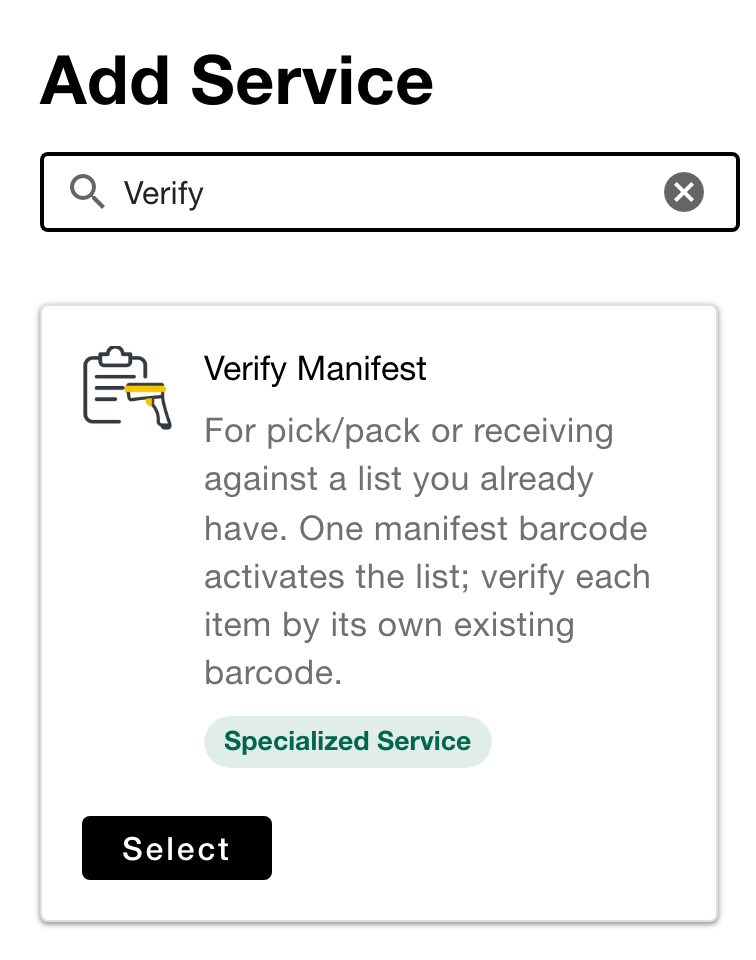
On the Add Service page, select Verify Manifest.
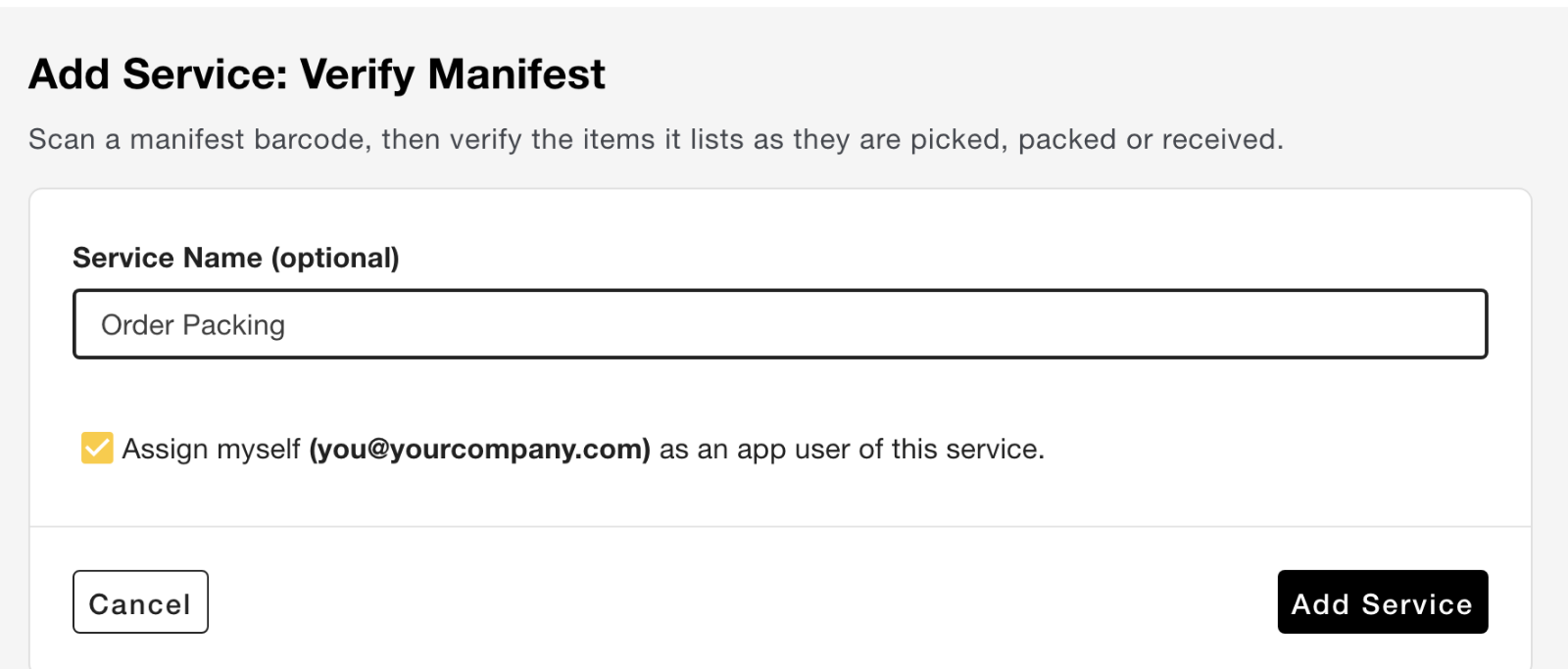
- Service Name (optional): up to 50 characters. Choose something your app users will recognize, like “Order Packing”. If you leave it blank, a name is assigned for you.
- Assign myself as an app user: checked by default, so you can scan with the service right away.
Click Add Service. The service opens on its Monitor tab. Its other tabs are Generator, Scans, Users, and Manage.
Step 2: Build a list (Generator tab)
Enter the list, then generate its manifest barcode value for your label printer.
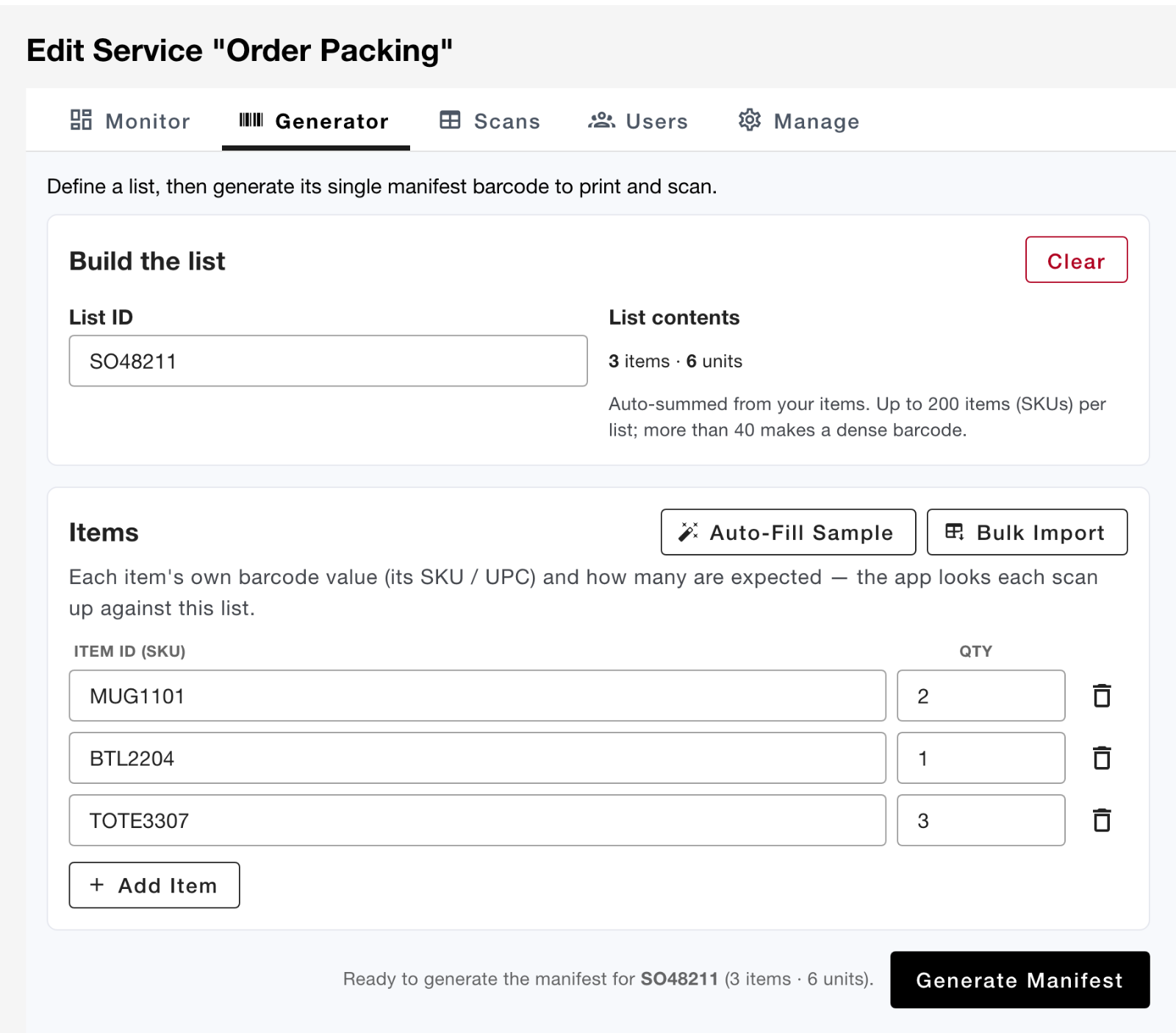
- Enter a List ID of up to 64 characters, such as an order or PO number.
- Under Items, add one row per item: its Item ID (SKU), exactly as the item’s barcode reads, and its Qty. List contents adds them up as items and units.
- Bulk Import: paste rows, or choose a CSV, TSV, or text file, with two columns, Item ID and quantity (a blank quantity counts as 1). Pasting straight from Excel works too. Tick First row is a header if it has one, then choose Import (replace rows) or Import (append rows).
- Auto-Fill Sample: fills in example rows so you can try things out.
- List each item ID once. If one repeats, click Merge duplicates.
- Click Generate Manifest.
To start a new list, click Clear on the Build the list card, then Yes, clear. It empties the List ID and every item.
A list can hold up to 200 different item IDs. Every item ID makes the manifest barcode bigger, so with more than 40, List contents warns “dense barcode — test-scan before printing”. The list still generates, but before you print the rest, print one manifest and test-scan it on each kind of device you’ll use.
Item IDs and the list ID can’t contain quotes, backticks, backslashes, angle brackets, ampersands, or the * and | characters (or whatever you’ve set instead on the Manage tab).
Print the manifest barcode
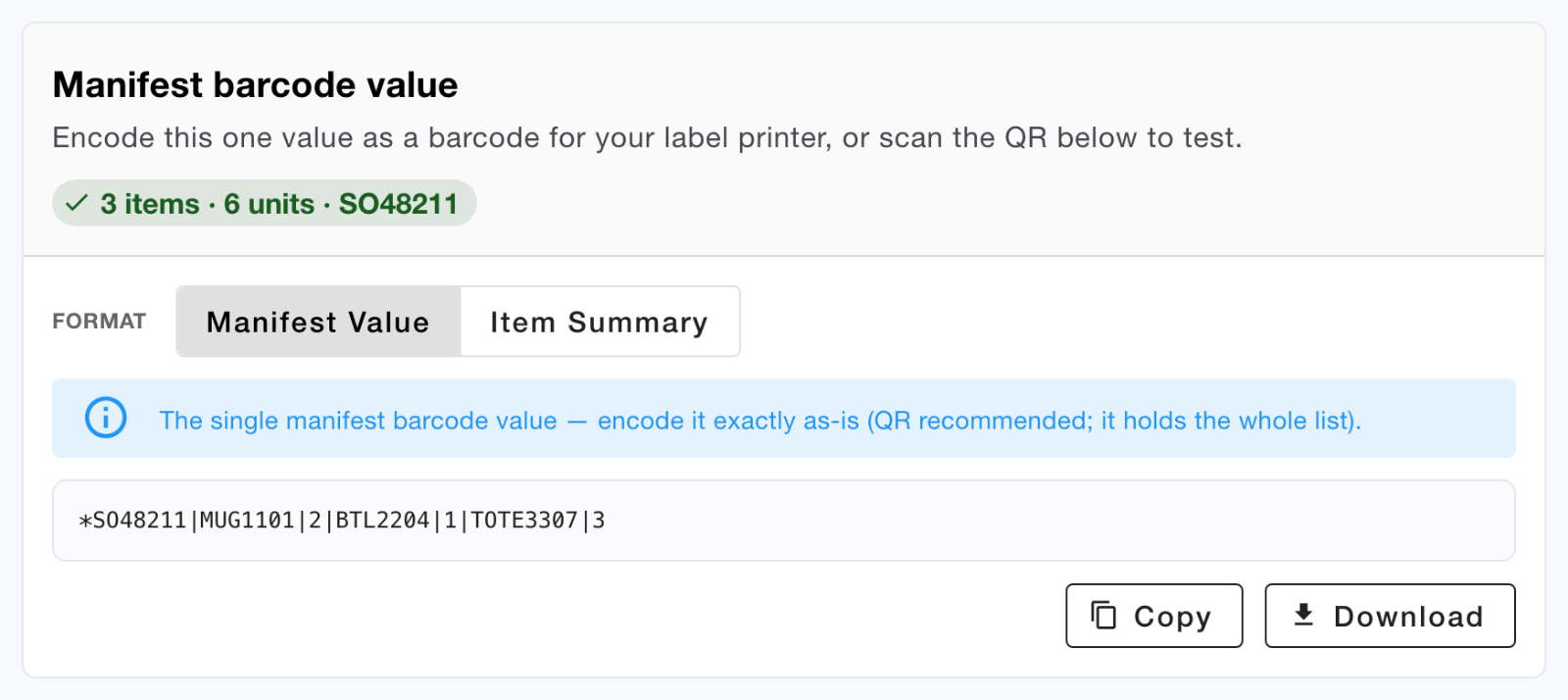
Under Manifest barcode value, choose a format, then click Copy or Download:
- Manifest Value: the one value to encode as a barcode, exactly as shown. A QR code is recommended, because it holds the whole list.
- Item Summary: one row per item ID with its quantity. This is a checklist, not a scannable barcode, and you can load it back in with Bulk Import.
Your list stays in this browser until you click Clear, so you can switch tabs or come back later. When you do, the Generator shows “Restored your list as it was on …” with the date. Lists aren’t saved in your CodeREADr account, so another browser or computer won’t have it. Keep the downloaded file if you’ll need a list again.
Making manifests in your own system? Your WMS, ERP, or label software can print the manifest barcode instead, as long as the value matches the format above exactly.
Try it before you print
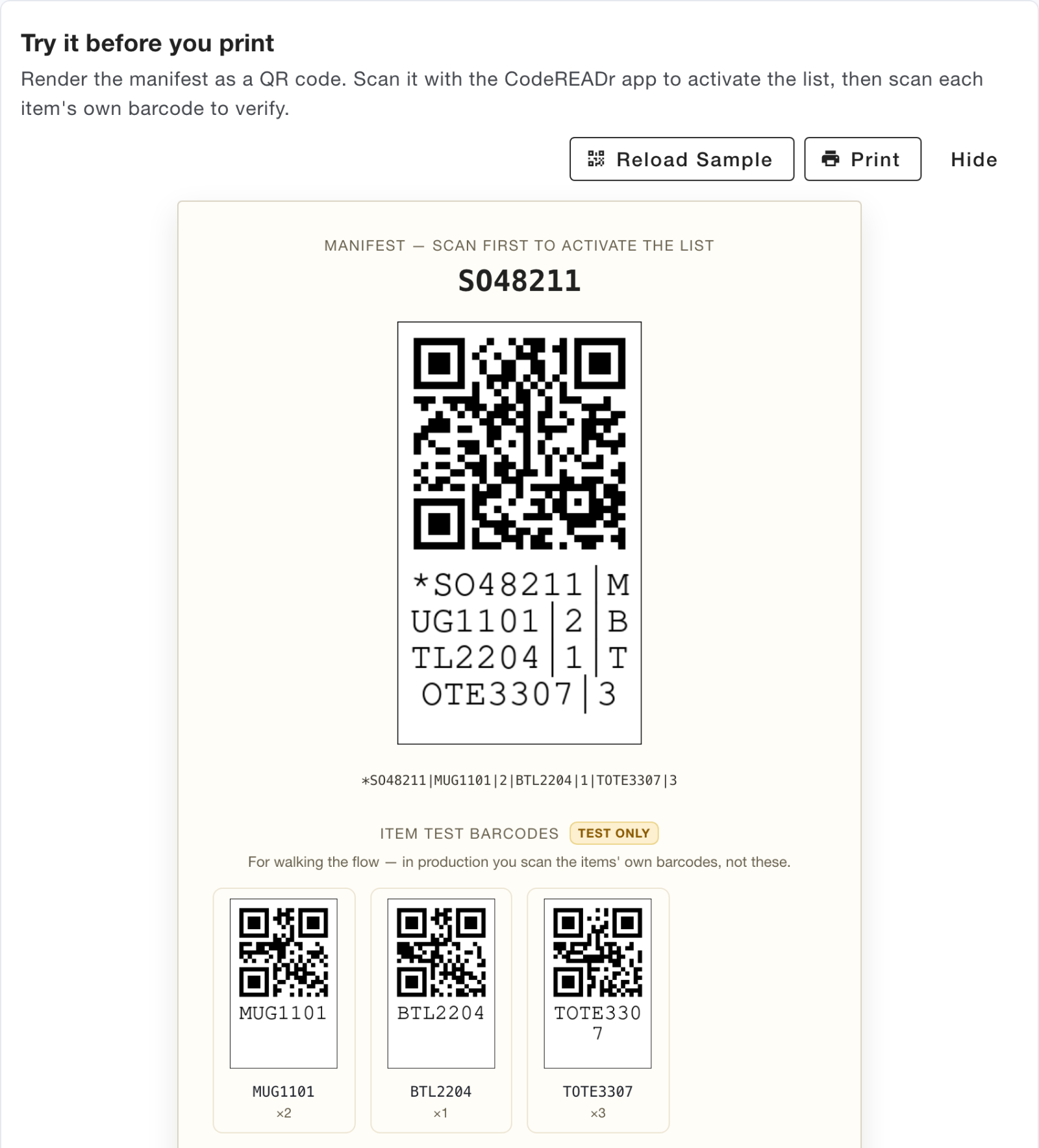
Click Show Sample to show the manifest as a QR code on screen, with test barcodes for up to 12 of its items. Scan them straight from your monitor with the CodeREADr app to walk through the whole flow. The item barcodes are marked Test only: when you use the service for real, scan the items’ own barcodes. These are real scans, so they also appear on the Monitor. Print prints the sample sheet.
Step 3: Choose who scans (Users tab)
Check the box next to each user who should scan with this service, then click Save Changes. Click Add User to create a new app user.
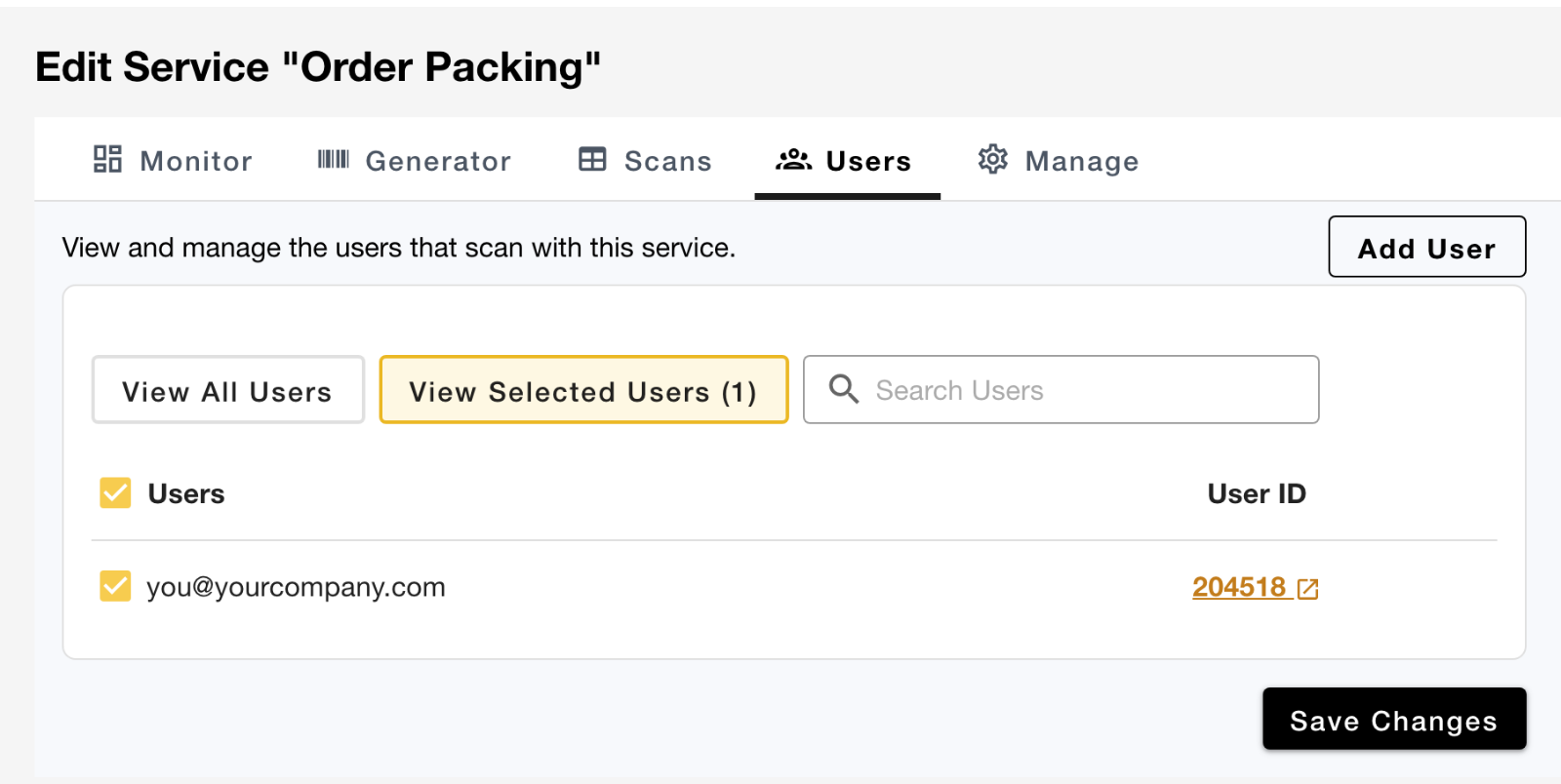
Step 4 (optional): Adjust settings (Manage tab)
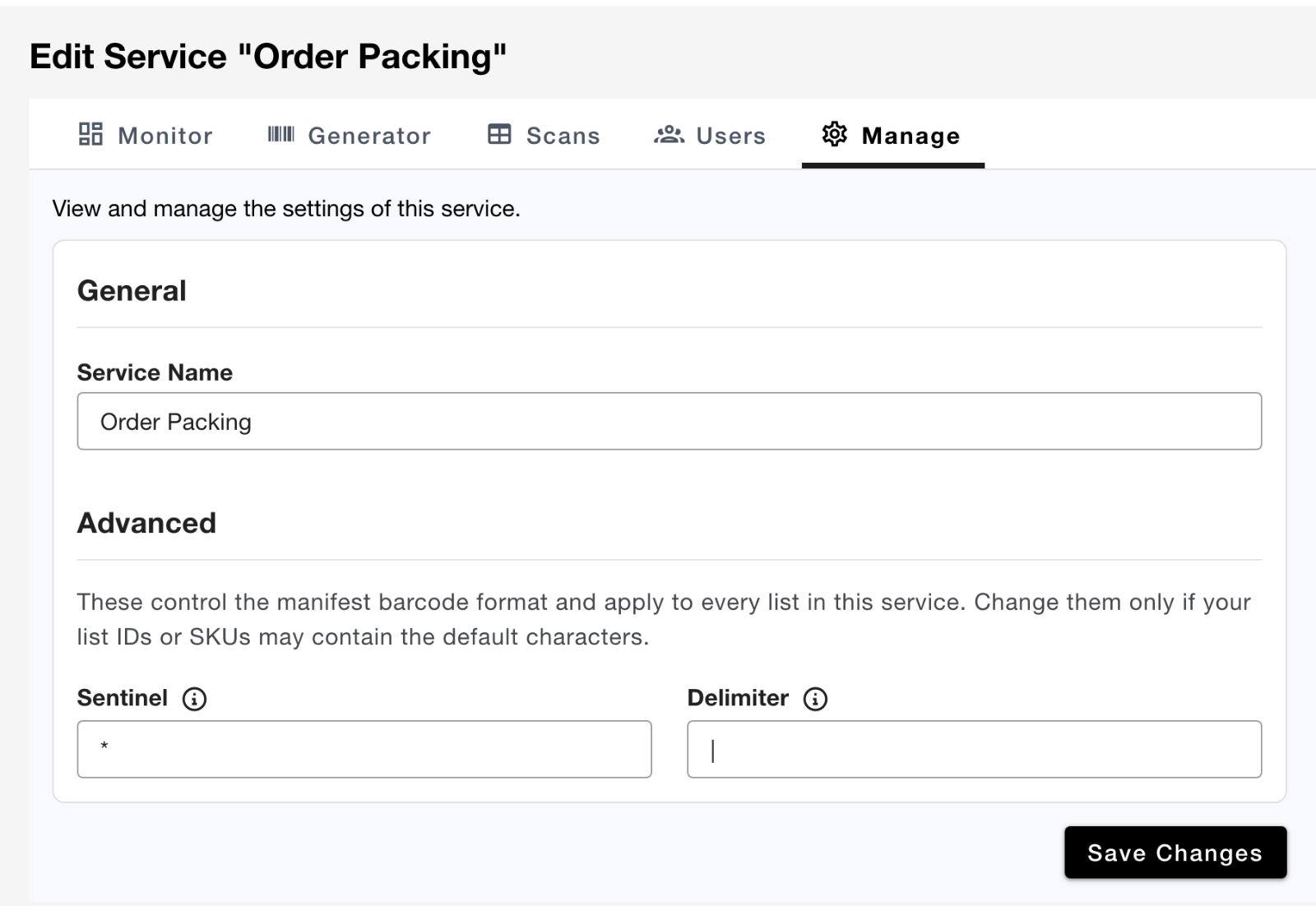
- Service Name: rename the service at any time.
- Sentinel (Advanced): the single character that marks a barcode as a manifest,
*by default. - Delimiter (Advanced): the single character between the list ID, item IDs, and quantities,
|by default.
The Advanced settings apply to every list in the service. Change the sentinel or delimiter only if your list IDs or item IDs contain those characters, and before you print manifests, because manifests printed with the old characters won’t scan afterwards.
Click Save Changes.
Scanning with the service
In the CodeREADr app, tap the service, then:
- Scan the manifest barcode. The app confirms “Now verifying List: SO48211.” and shows how many items remain.
- Scan each item’s own barcode, in any order. Each accepted scan shows VALID, “Item verified:” with the item ID and its count, the items remaining, and progress for the list and for each item ID.
- Finish the list. The last item shows “Last item verified. List complete.”
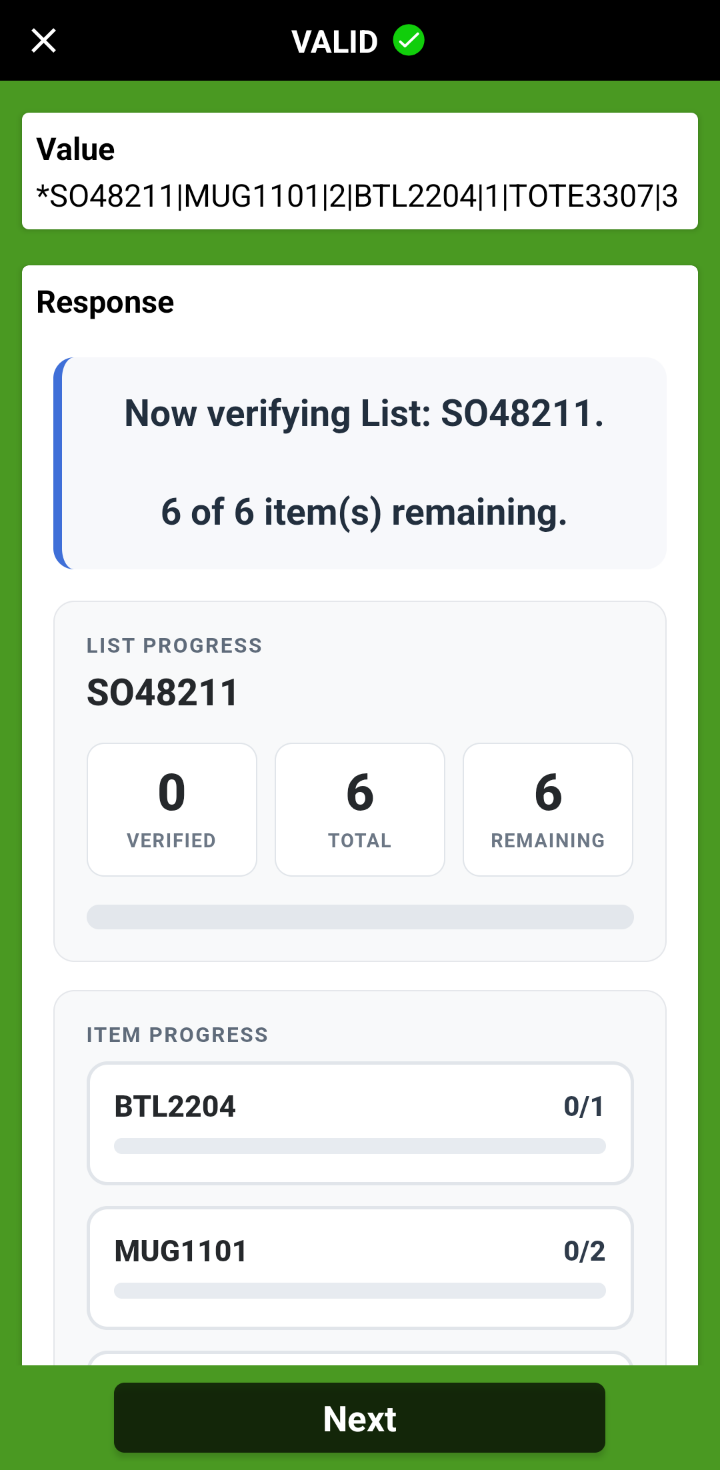
Scan the manifest
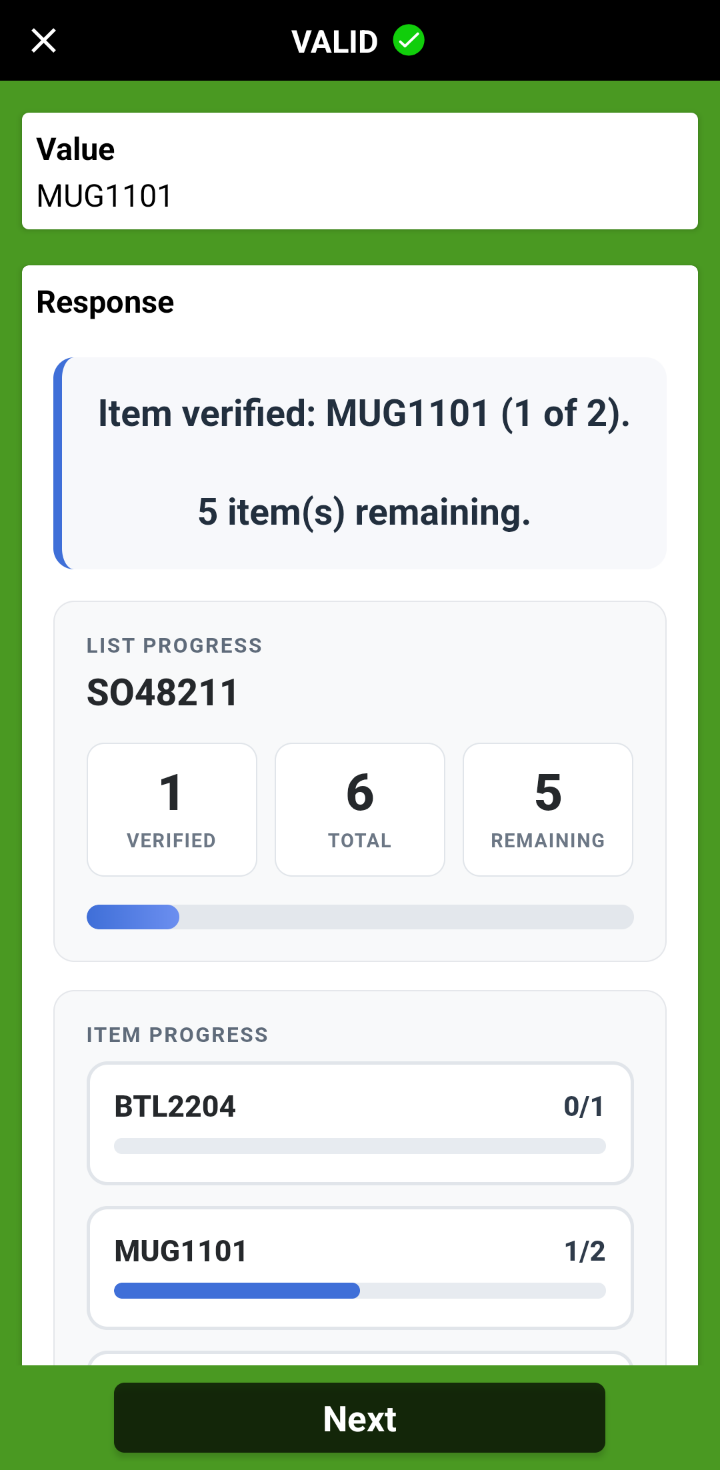
Scan each item
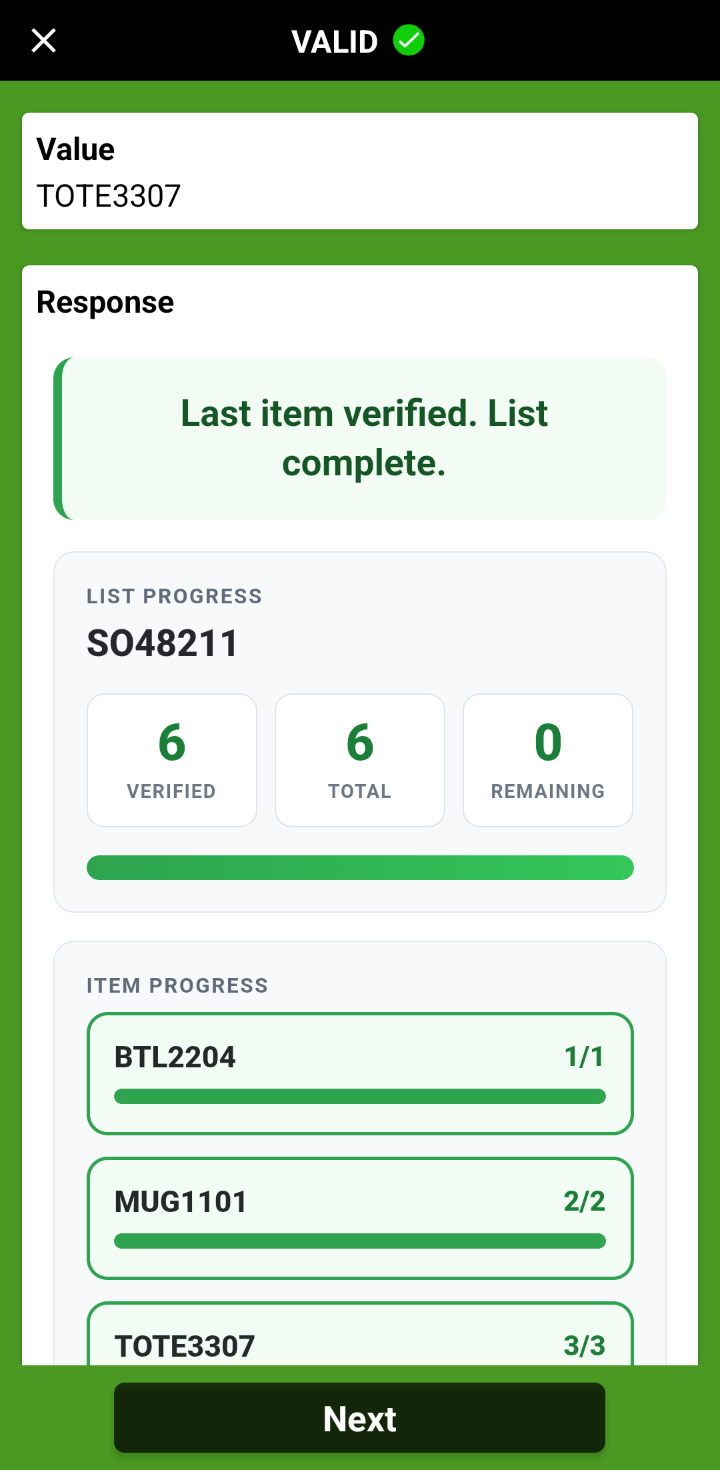
List complete
Anything that doesn’t belong is rejected with a red INVALID result and the reason, for example an item that isn’t on the list, one more unit of an item than the list calls for, or an item scanned before any manifest:
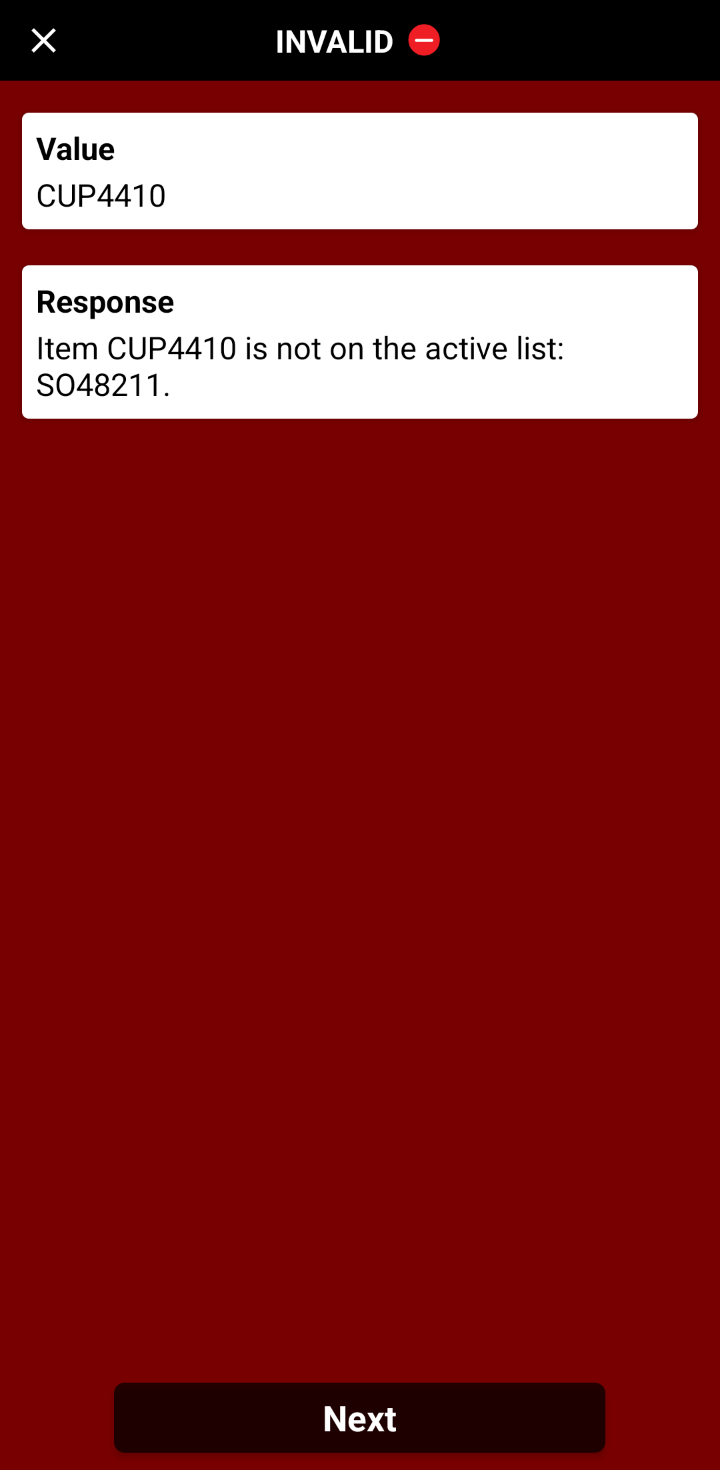
Item not on the list
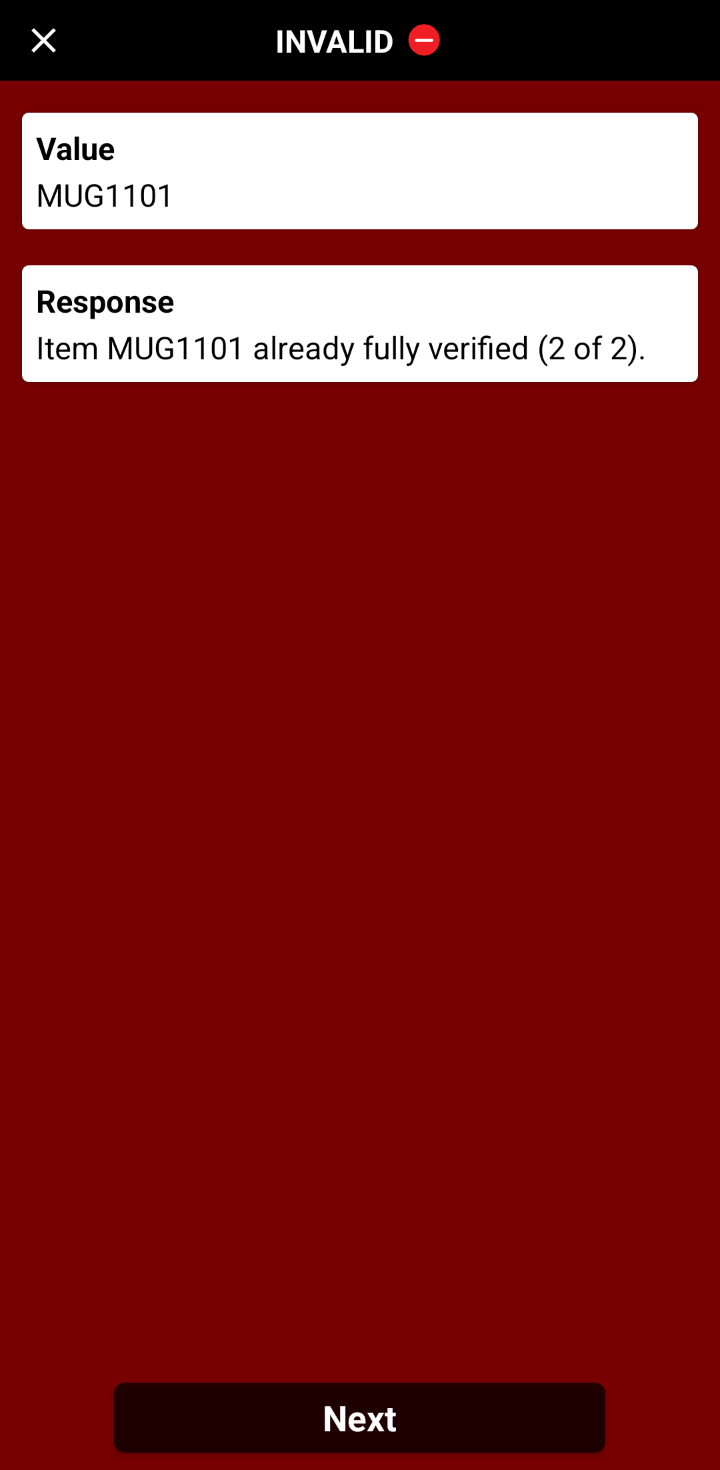
One too many
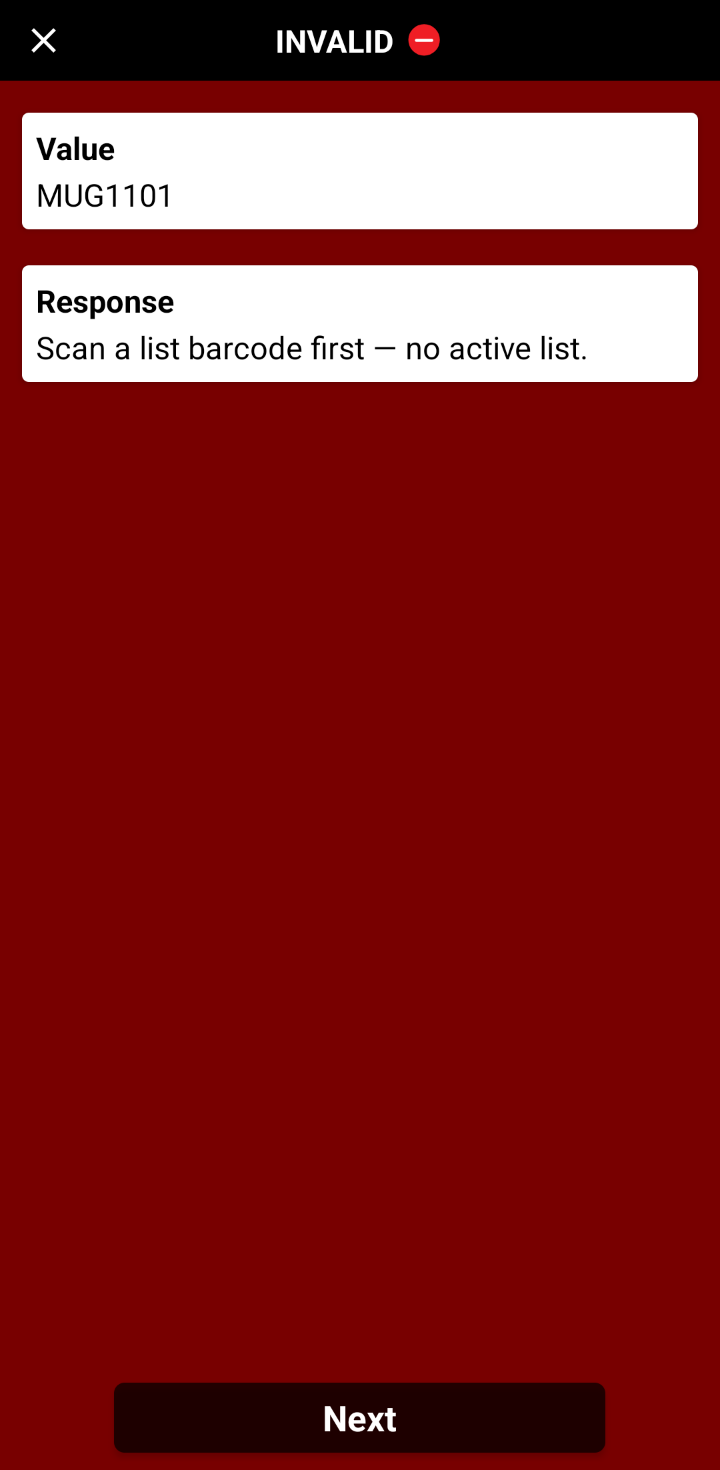
No manifest scanned yet
Good to know
- The app counts units. “6 of 6 item(s) remaining” means six units, across all the list’s item IDs.
- An item barcode must match the item ID in the manifest exactly, including capital letters and leading zeros.
- Scanning a different manifest switches to that list, and the app says so: “Switched to List: SO48212 (was SO48211).” Progress is kept, so you can return to a list by scanning its manifest again.
- The active list is remembered for each app user on each device. On a new device, scan the manifest again.
- Several app users can work the same list at once. They share its progress, so a unit one person has verified counts for everyone.
- Progress belongs to the list ID, so use a new list ID for each order or delivery. Reusing one carries its earlier scans forward.
- Scanning too few of an item isn’t rejected. The list just stays incomplete, and the Monitor shows it.
- Rejected scans are still recorded, and they appear on the Monitor as discrepancies.
- To undo a scan made by mistake, delete its record on the Scans tab. Deleted scans no longer count.
Monitoring progress (Monitor tab)
The Monitor tab shows every list scanned with the service. Choose a range (Today, the default, 7 Days, 30 Days, Custom, or All), and click Refresh for the latest scans.
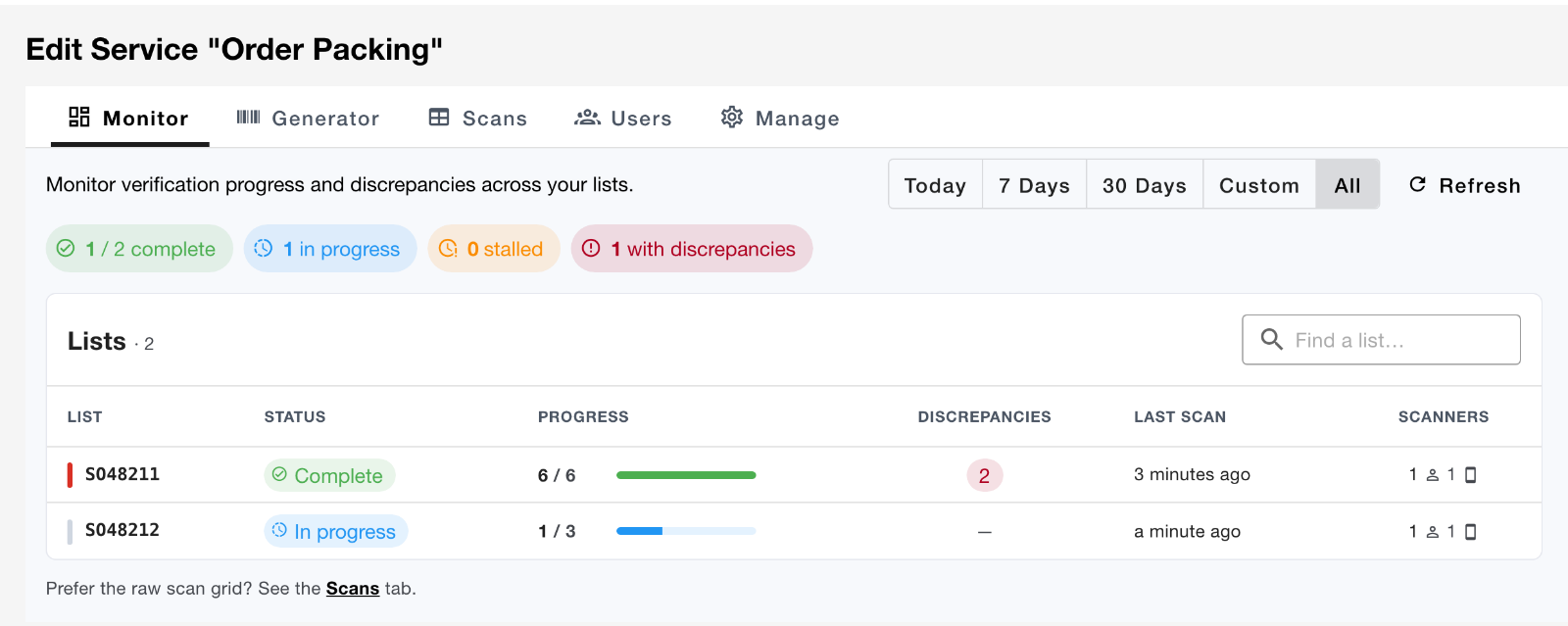
- With All selected, each list shows its status and progress. Complete means every unit is verified, In progress means some are, and Stalled means the list isn’t complete and hasn’t been scanned for 24 hours. The other ranges show each list’s activity within that range.
- Click a summary chip, such as with discrepancies, to filter the lists. Type in Find a list… to search.
- Scanners shows how many app users and devices have scanned each list.
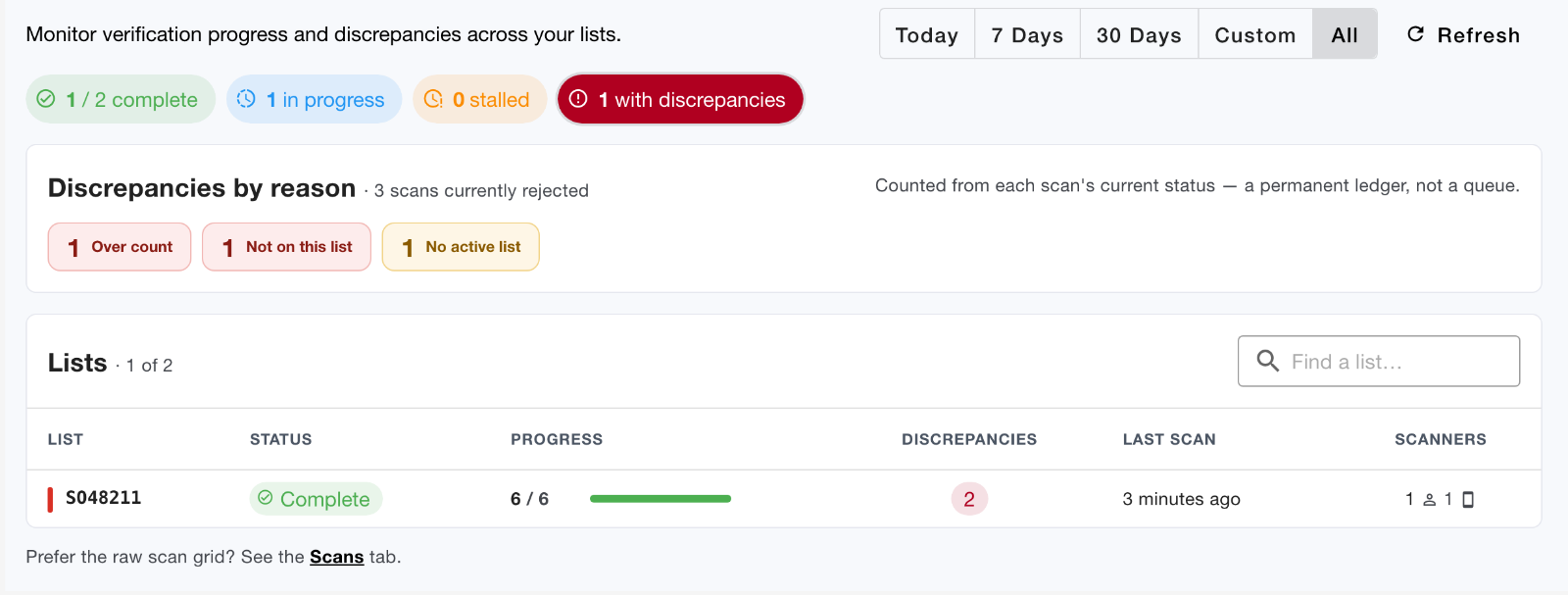
Discrepancies by reason groups every rejected scan by cause, such as Not on this list, Over count, or No active list. It’s a permanent record of what happened, not a to-do list. Scans rejected before any list was active, or because the barcode wasn’t recognized, aren’t tied to a list, so they appear only in these totals.
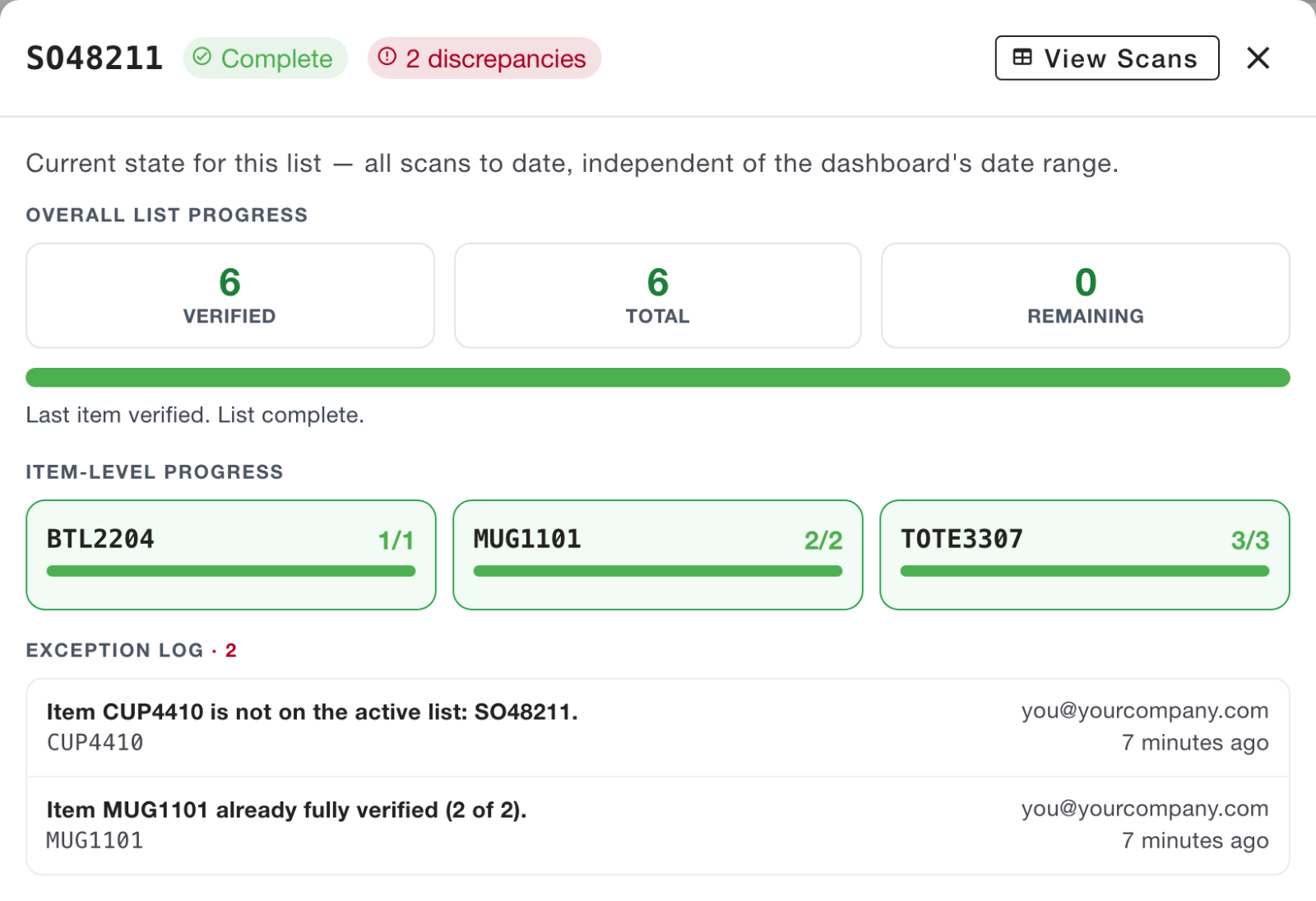
Click a list to open its details:
- overall and item-level progress,
- an Exception log of rejected scans, showing who scanned them and when,
- a Scan timeline of recent scans.
The details always cover the list’s full history, whatever range is selected. Click View Scans to see the list’s scan records.
Scans tab
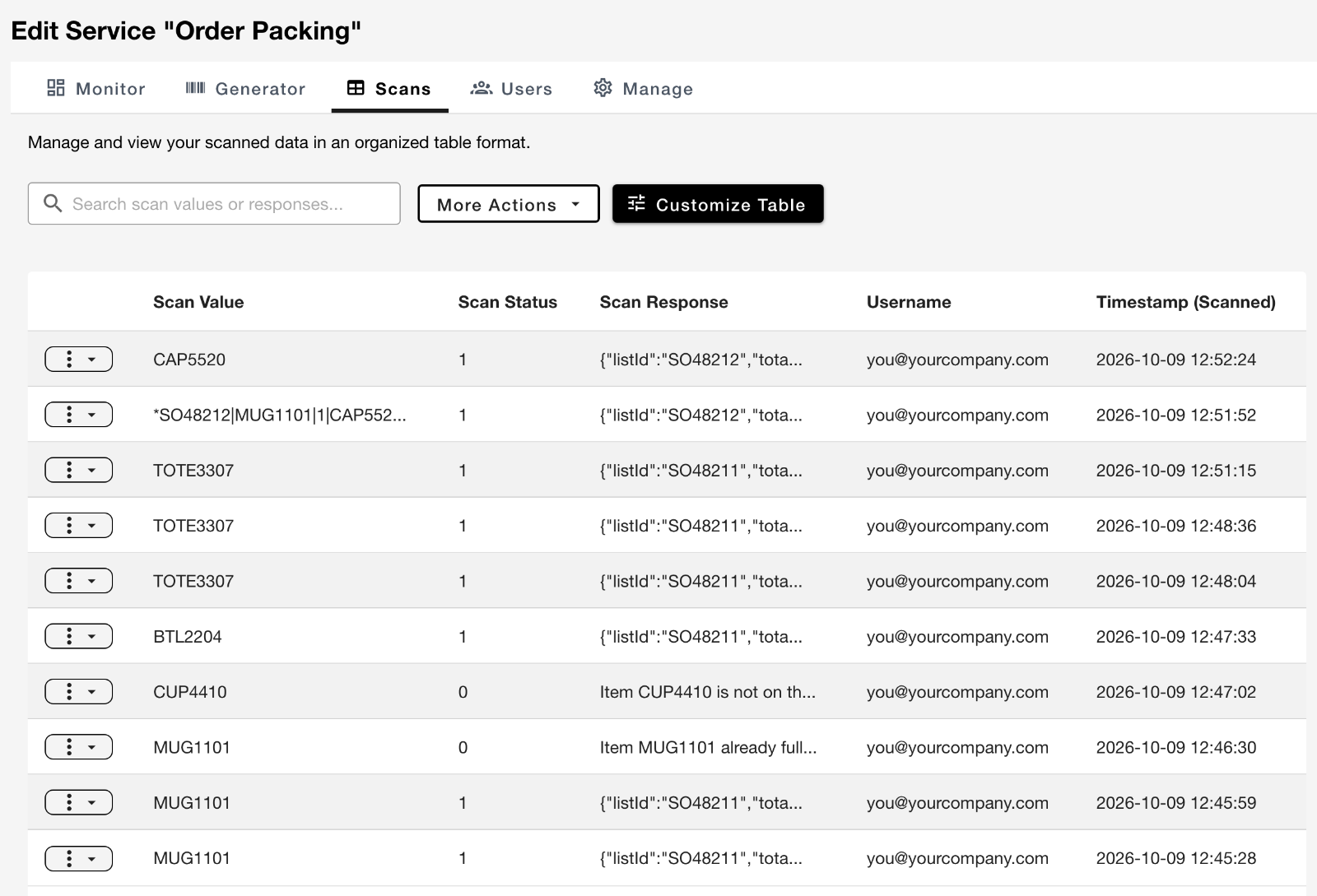
The Scans tab lists every scan record: its value, status (1 = valid, 0 = invalid), response, username, and time. Search scan values or responses, and use Customize Table to choose and arrange the columns. Account owners and admins can open More Actions, then Open Full Scans Dashboard, to filter and export scans.
Troubleshooting
| The app says… | What it means | What to do |
|---|---|---|
| Scan a list barcode first — no active list. | An item was scanned before any manifest on this device. | Scan the manifest barcode, then scan the item again. |
| Item … is not on the active list: … | The item ID isn’t in the active list’s manifest. It may belong to another order, or its barcode may differ from the item ID in the manifest. | Set the item aside. If it belongs to another list, scan that list’s manifest first. Check the item ID in the manifest matches the barcode exactly. |
| Item … already fully verified (… of …). | Every unit of this item the list calls for is already verified, by you or another app user. | Set the extra unit aside and check it against the list. |
| List too large: … items (SKUs) exceeds the maximum of 200. Split it into smaller lists. | The manifest holds more than 200 different item IDs. The previous list stays active. | Split the list into smaller lists, each with its own manifest. |
| Invalid barcode format. | The app can’t read the barcode as a manifest or an item. For example, a manifest printed with a different sentinel or delimiter, a manifest that lists the same item ID twice, or an item barcode that contains *, |, or another character that isn’t allowed. |
Check the sentinel and delimiter on the Manage tab, and regenerate the manifest from the Generator. |
| Switched to List: … (was …). | A manifest for a different list was scanned, so that list is now active. This is how you move between lists, but after an accidental scan, an item that’s on both lists would count toward the wrong one. | If you didn’t mean to switch, scan the manifest of the list you were working on. |
| List complete. All items verified. | You scanned the manifest of a list that’s already complete. | Nothing. Scan the next order’s manifest. |