
CodeREADr’s Scan to Excel/Sheets Specialized Service automates the delivery of scan data directly into your spreadsheet of choice, eliminating the need for manual data exports or CSV imports.
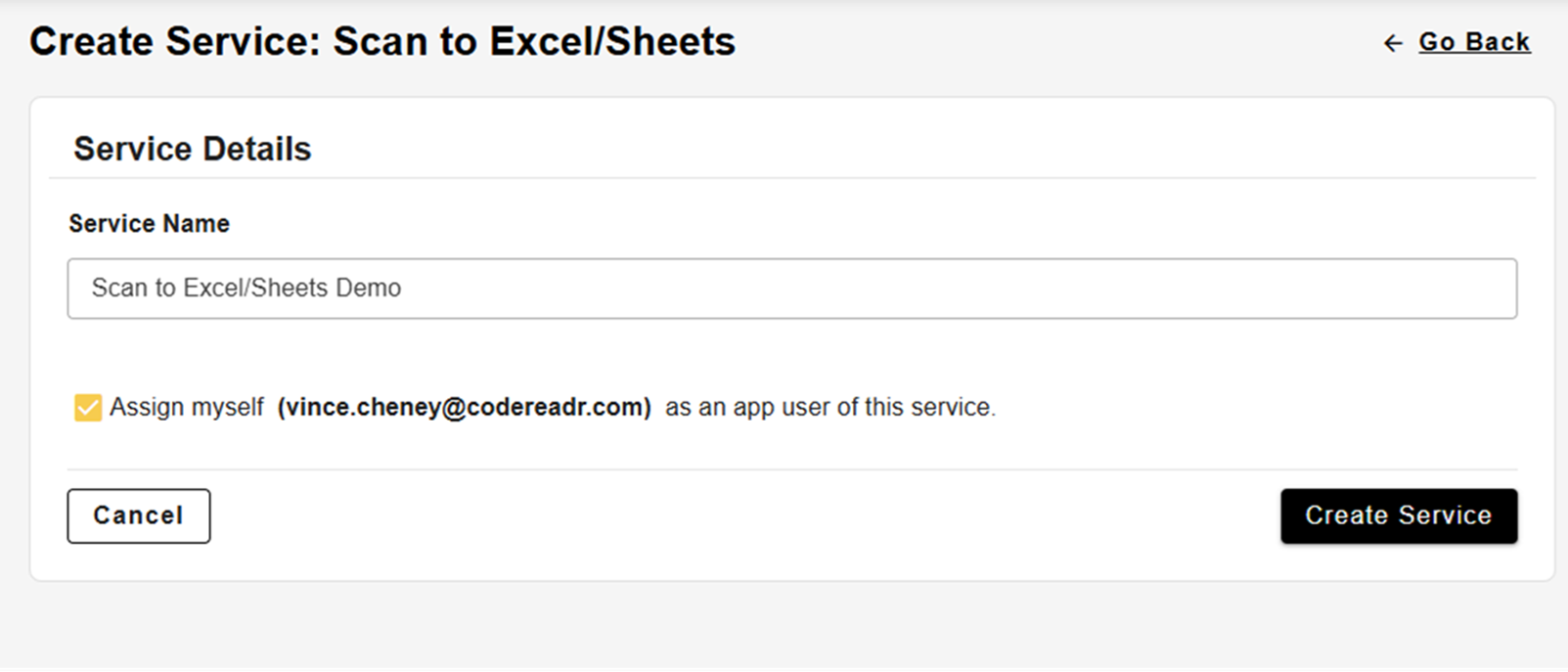
This service inserts scanned barcode values, timestamps, and user data to specific columns in a designated spreadsheet, updating in real time as scans are submitted.
After selecting the Scan to Excel/Sheets service, you will enter a name for the service. Choose something identifiable for your app users.
Scans Table
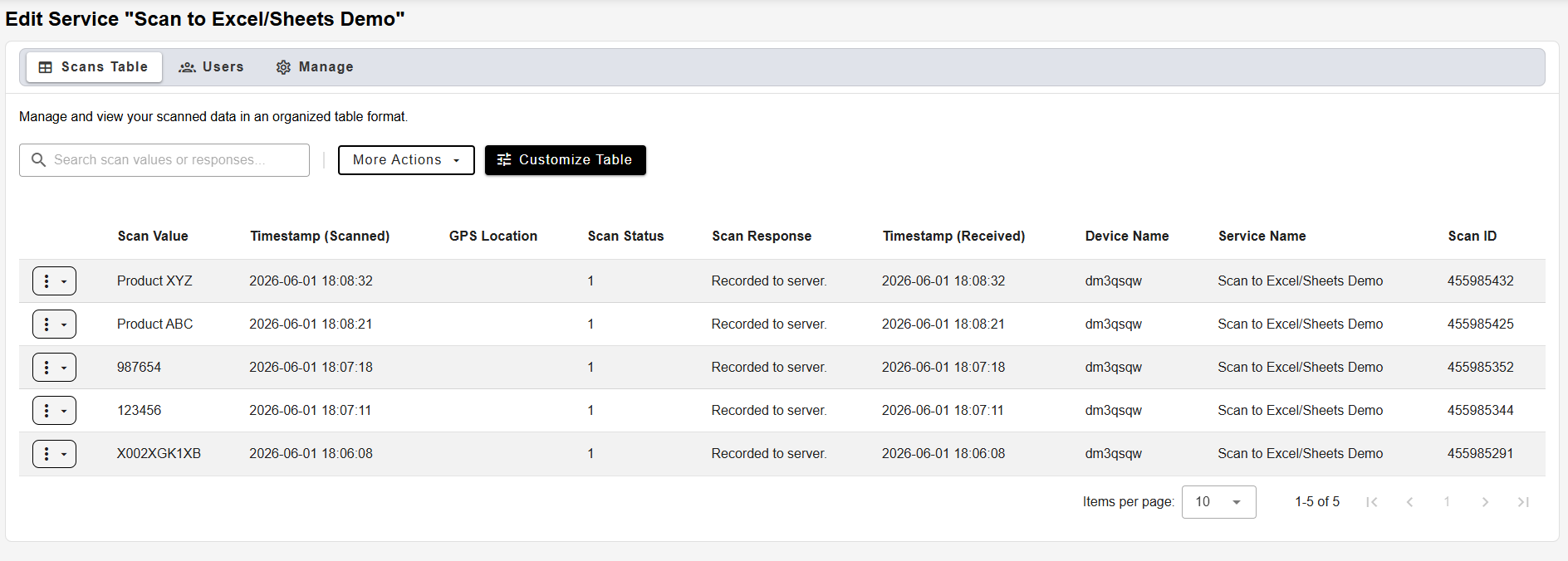
After service creation, you will be able to see scans made by the service from the CodeREADr mobile app. The “Customize Table” button allows you to configure the format and order of the fields in the table.
Using the “More Actions” dropdown, you can generate the CSV Web Link. The link will follow the format of the table and output scans in that format and order, so it will be ideal to customize the fields first.
The More Actions dropdown also links directly to instructions for inserting the Web Link into Excel, Google Sheets, and more platforms for scan data to populate into automatically.
App Users
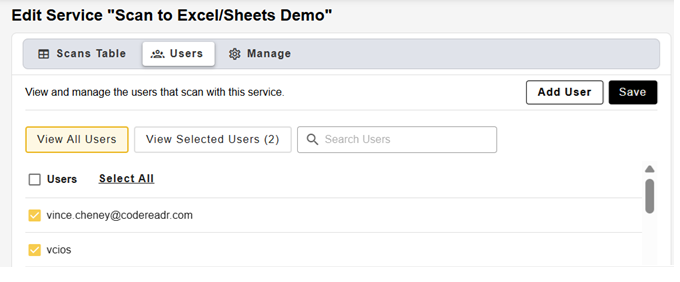
Use the Users tab to control who can scan with this service. Check the box next to a user to give them access in the CodeREADr app. You can also add and invite new users from here.
Scanning with the Service
Once the service is created, and your users are logged in, scan records will be created whenever the app users make scans using this service from the CodeREADr app.
Scan records will be directly sent to the cloud and will only need to be uploaded from the device if connectivity is lost.
After the scans are uploaded, they may be deleted from the Table at any time as well if necessary, and this will be reflected in the CSV web link output to third party platforms as well.