
How to Filter and Export Scan Records: Video
The Scans page in your CodeREADr admin dashboard is the central hub for viewing, filtering, and exporting every scan your mobile app users have uploaded. The quickest way to get scan data out of CodeREADr is to export a CSV file directly from this page.
Exports from the Scans page are on-demand: you filter the data you want, click export, and receive a downloadable CSV.
Scan Filtering and Exporting, Step by Step
Visit secure.codereadr.com and sign in with your account credentials.
2. Click the “Scans” tab
In the top-left navigation of your dashboard, click Scans. This opens the full list of scan records collected across all your services and app users.
Basic Filtering
Before exporting, use the filter panel to narrow your records. The export will include only the records currently visible in the filtered view.
Step 3. Select the Filters button on the left hand side of the screen.
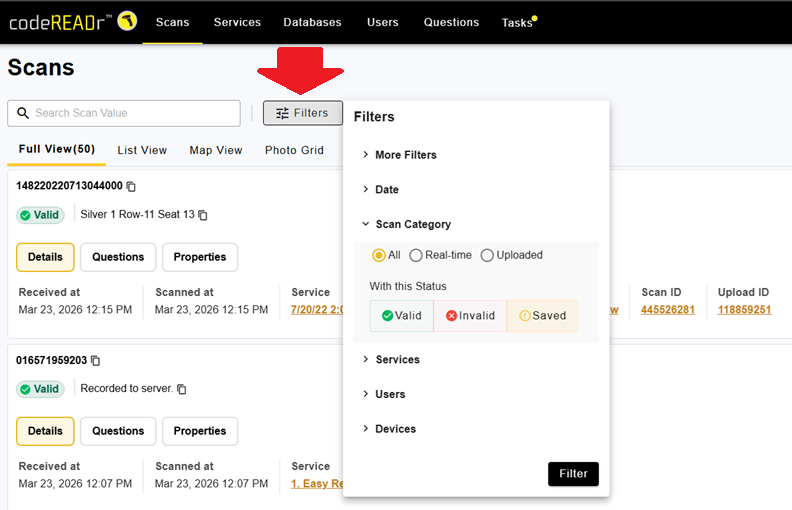
Filter by a preset period (last 24 hours, this week, this month) or enter a custom date range. Choose between Date Scanned, Date Received, and Date Modified as the reference point.
Filter by one or more services. Useful if you only want records from a specific event, location, or workflow.
Limit records to a specific app user or a group of users — for example, records scanned by a particular employee or team.
Show only valid scans, invalid scans, or error scans. Helpful for auditing or troubleshooting.
Filter records by the specific device used to capture the scan.
Advanced Filtering Options
Enhance your search precision using these advanced options, under the “More Filters” tab:
Filter for specific Scans, based on:
- Barcode value
- Response text
- Scan ID
- Display only the most recent scan for each barcode value, when the same barcode has been scanned multiple times.
Export Scans
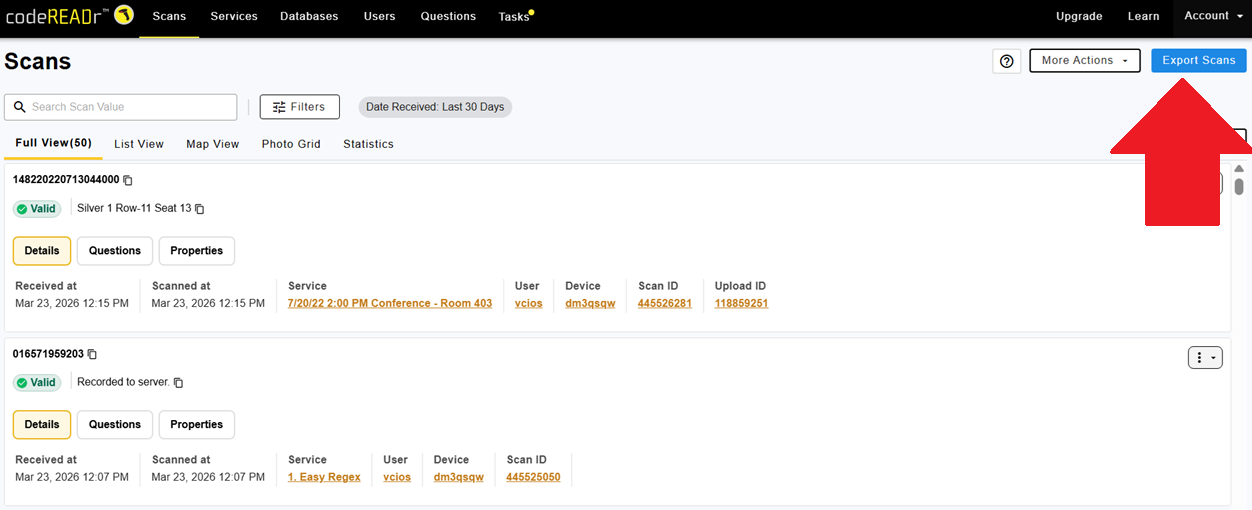
On the Scans page, look at the top right-hand side menu. You will see several action options listed there.
Select Export Scans from the menu. This triggers the export workflow for the records currently in your filtered view.
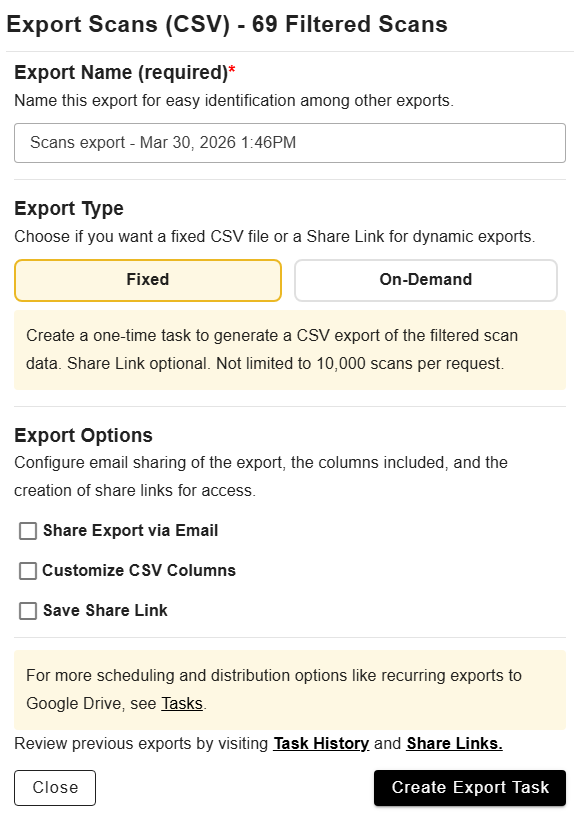
Use the below menu to initiate the export by hitting “Create Export Task” at the bottom. You can choose whether to generate a fixed one-time export (with an optional share link), or an on-demand share link of your Scans that will automatically refresh. Limits may apply for on-demand share link exports.
For further filtering, check “Customize CSV Columns” and review section below on CSV Export Templates.
Choose an Output Format (Optional)
CodeREADr lets you customize the structure of your exported CSV using Export Templates. If you have created a template, you can select it at this step.
What export templates control
- Column order and which columns are included
- Custom column header names
- Date and time formatting (combined or split into separate columns)
- Data transformations using REGEX or pre-programmed formats (e.g., clickable URLs)
If you skip template selection, the export uses the default column format. To create or manage templates, go to Account → Export Templates. See Creating Export Templates for full details.