

SHOPIFY INTEGRATION
Integrate CodeREADr with Shopify Using Make
This guide walks through two potential ways to connect CodeREADr to Shopify with Make: one that adds every new Shopify order to a CodeREADr database, and one that tags the order “Picked Up” the moment it is scanned. These are only two suggestions. Make’s Shopify and CodeREADr modules support a wide range of other workflows, from inventory counts and returns to fulfillment checks and customer check-ins, so treat these as starting points to adapt to your own process.
What is CodeREADr?
CodeREADr is a barcode scanning and data capture platform that turns iOS and Android devices into enterprise-grade scanners. Teams use it to validate tickets at events, verify customer pickups, track assets and inventory, and record deliveries. Every scan can be checked against a database, enriched with questions or photos, and sent to other systems in real time.
Many Shopify stores sell things someone has to hand over in person: event tickets, buy-online-pickup-in-store (BOPIS) orders, rentals, or class registrations. Connecting CodeREADr to Shopify lets staff scan a barcode at the door or the counter and have Shopify update itself, with no manual lookups.
What is Make?
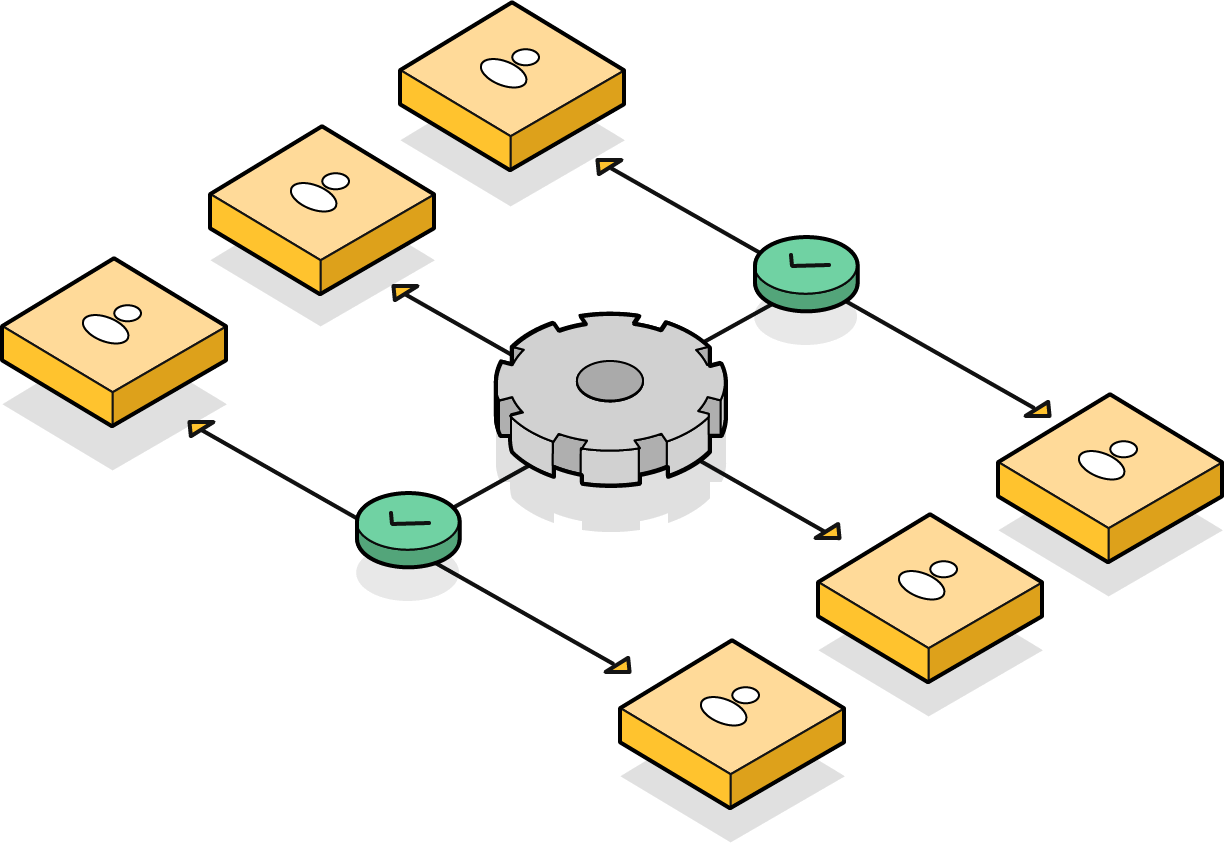
Make (formerly Integromat) is a no-code automation platform that links apps through visual workflows called scenarios. It has ready-made modules for both Shopify and CodeREADr, so you can build this integration without writing code.
Before you start
Have these ready before you open Make:
- A CodeREADr account with permission to create databases and services.
- A CodeREADr API key, which Make uses to add barcodes to your databases. Find your account’s API key here.
- A Shopify store and admin access to it.
- A Make account. The free plan works for testing; busy stores will want a paid plan for more operations and shorter polling intervals.
- The CodeREADr app installed on the phones or tablets your staff will scan with.
Workflow 1: New Shopify order → add a barcode to a CodeREADr database
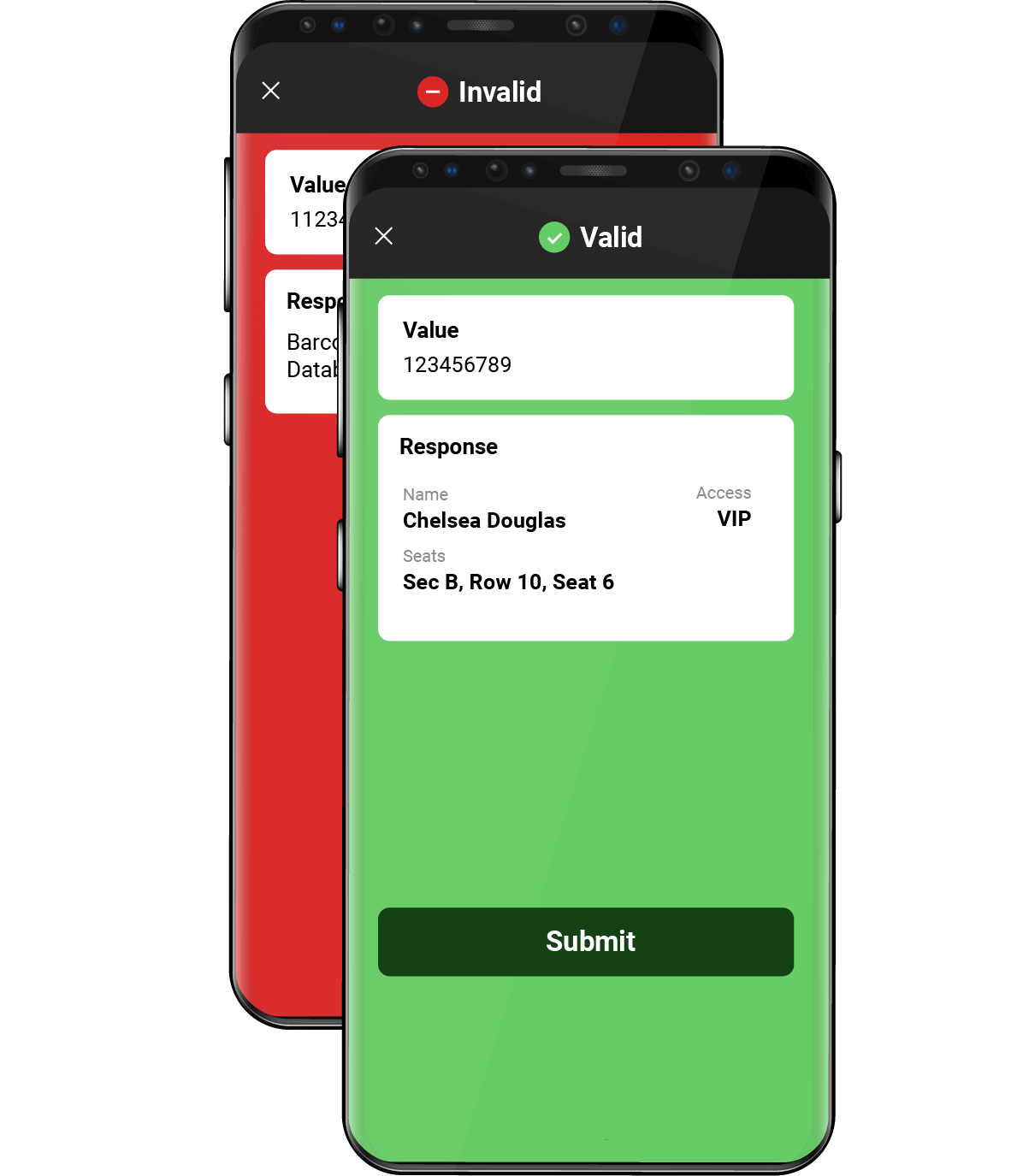
This scenario watches Shopify for new orders and adds each one to a CodeREADr database as a valid barcode. When a customer arrives with a ticket or pickup code, a CodeREADr Validate service checks the scan against that database and shows staff a valid or invalid result instantly.
Step 1: Create the database in CodeREADr
- Log in to the CodeREADr web portal and open Databases.
- Create a new database, for example “Shopify Orders.”
- Note the database. You will select it in Make in Step 4.
Step 2: Create a scenario in Make
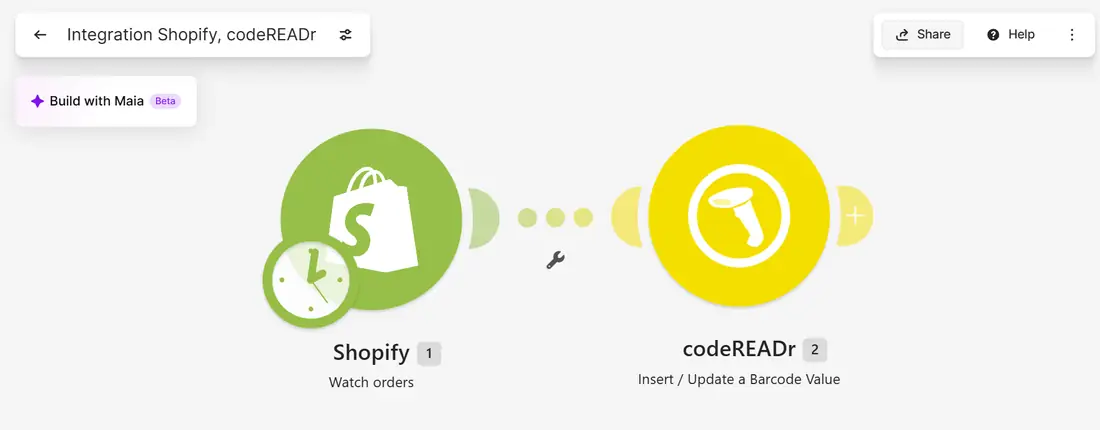
- In Make, click Create a new scenario.
- Name it something clear, such as “Integration Shopify, CodeREADr.”
Step 3: Add the Shopify “Watch orders” trigger
- Click the large plus sign, search for Shopify, and choose Watch orders.
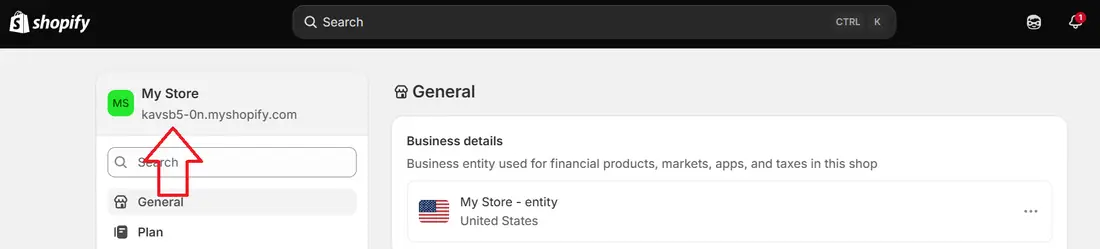
- Click Add to create a connection. Make asks for your store’s subdomain, which is the part before .myshopify.com.
- To find it, open Shopify admin and go to Settings → General. The domain appears under your store name.
- Approve the permissions Shopify requests.
- Choose which orders to watch. Filter by status if you only want paid orders, and set how many orders to pull per run.
- When asked where to start, pick From now on so Make skips your order history.
Step 4: Add the codeREADr “Insert / Update a Barcode Value” action
- Click the plus on the right side of the Shopify module, search for codeREADr, and select Insert / Update a Barcode Value.
- Create a connection using your CodeREADr API key.
- Map the fields:
- Database: the database from Step 1.
- Barcode Value: the Shopify Order ID from the trigger. Using the numeric order ID, rather than the order name like #1001, lets Workflow 2 update the order directly.
- Response Text: what staff see on screen after a scan, such as the customer name, order name, and items.
- Validity: valid.
- Click OK and save the scenario.
Step 5: Get the barcode to your customer
The customer needs the order ID as a scannable code. A common approach is to add a QR code that encodes the order ID to Shopify’s order confirmation email (Settings → Notifications). The customer then shows that email at the door or pickup counter.
Step 6: Schedule the scenario
Click Run once and place a test order to confirm a new value appears in your CodeREADr database. Then turn on scheduling and set the interval. Shopify’s Watch orders trigger checks on a schedule, so with a 15-minute interval an order can take up to 15 minutes to reach CodeREADr.
Workflow 2: CodeREADr scan → tag the Shopify order “Picked Up”
This scenario runs the moment a barcode is scanned. A CodeREADr service posts each scan to a Make webhook using its built-in Postback option, and Make adds a “Picked Up” tag to the matching Shopify order. Your team can then filter orders by that tag in Shopify admin.
Step 1: Create a webhook in Make
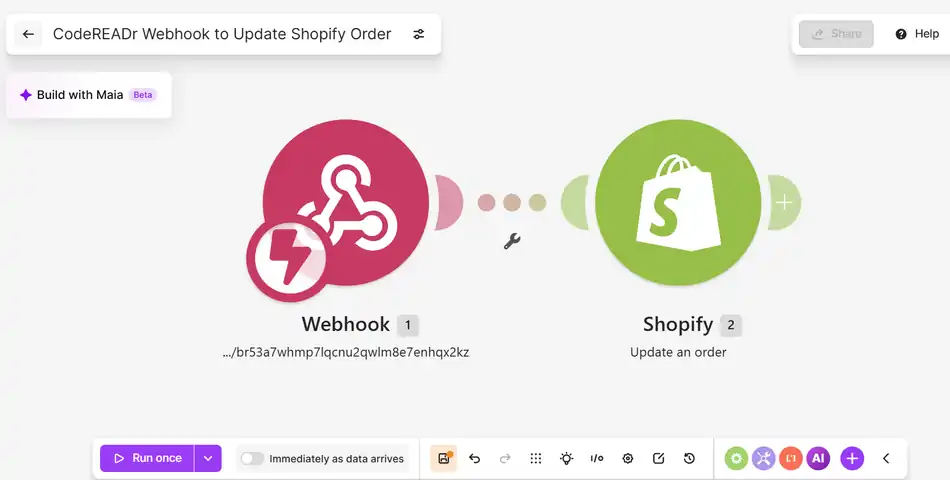
- Create a new scenario, for example “CodeREADr Webhook to Update Shopify Order.”
- Add the Webhooks → Custom webhook trigger and click Add to create a new hook.
- Copy the webhook URL Make generates. It looks like https://hook.us1.make.com/….
Step 2: Create a Validate or Record service in CodeREADr
- In CodeREADr, go to Services → Add Service.
- Choose the service type that fits your process:
- Validate Scans with a Database checks each scan against the database from Workflow 1, so staff see right away whether a ticket or pickup code is valid. This option requires a database.
- Record Scans saves every scan without checking it. It needs no database, so you can skip Workflow 1 if you only want to tag orders as they are scanned.
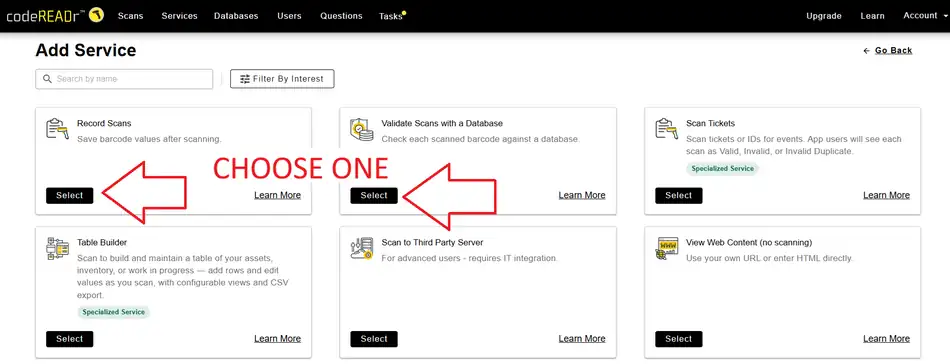
- For a Validate service, link the database you created in Workflow 1.
- Continue through the setup steps to Advanced.
Step 3: Turn on Postback
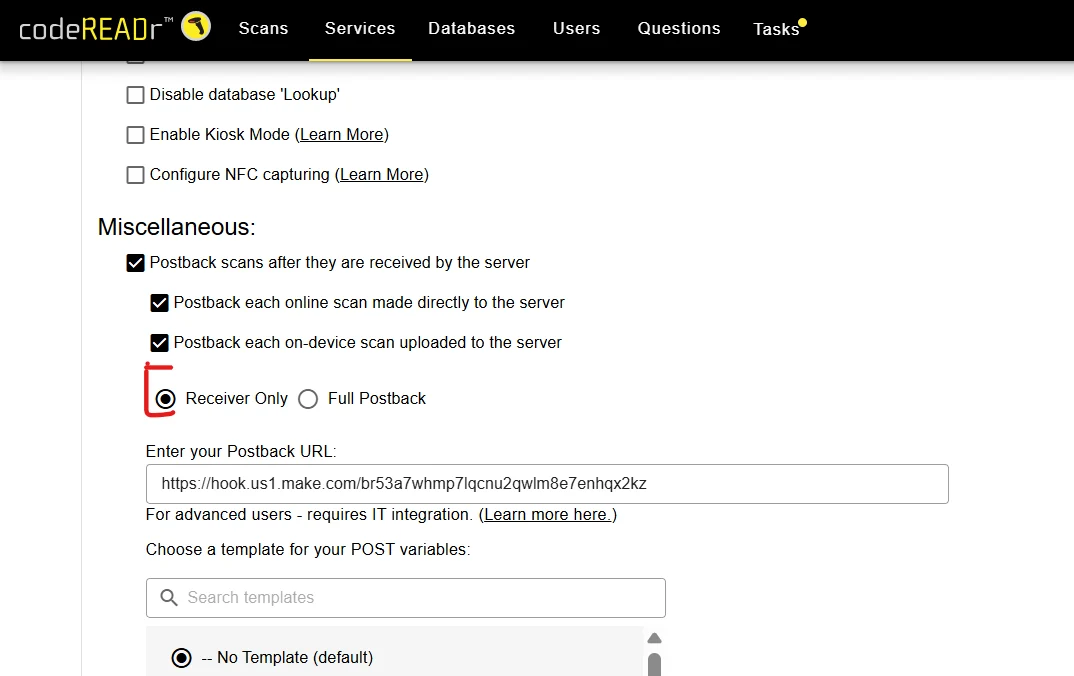
- On the Advanced step, under Miscellaneous, check Postback scans after they are received by the server.
- Check both Postback each online scan made directly to the server and Postback each on-device scan uploaded to the server, so scans taken offline still reach Shopify once the device reconnects.
- Select Receiver Only. CodeREADr sends the scan to Make and shows its own result in the app; it does not wait for a reply from Make.
- Paste the Make webhook URL into Enter your Postback URL.
- Leave the POST variable template set to No Template (default) unless you need extra fields.
- Save the service and authorize the users who will scan.
Step 4: Send a test scan so Make learns the data
- In Make, click Run once. The webhook waits for data.
- In the CodeREADr app, open the new service and scan a test order barcode.
- Make shows that it has determined the data structure. The scanned barcode value now appears as a field you can map.
Step 5: Add the Shopify “Update an order” action
- Add a Shopify module after the webhook and choose Update an order.
- Select the Shopify connection you created in Workflow 1.
- Map Order ID to the scanned barcode value from the webhook.
- In Tags, enter Picked Up.
Shopify replaces an order’s tag list when tags are updated. If your orders already carry tags you want to keep, add a Shopify → Get an order module first and send its existing tags along with Picked Up.
Step 6: Turn it on
Save the scenario and switch on Immediately as data arrives. From now on, every scan in that service tags the matching order within seconds.
Troubleshooting
| Problem | Likely cause | Fix |
|---|---|---|
| New orders don’t appear in CodeREADr | Scheduling is off, or the trigger started “From now on” after your test order | Turn scheduling on, then place a new test order |
| Validate service shows every scan as invalid | The service is linked to the wrong database, or Workflow 1 hasn’t run yet | Check the database on the service and confirm the order’s value exists there |
| Scans happen but Shopify isn’t updated | Postback is off, the URL is wrong, or the Make scenario is off | Recheck the Postback settings and switch on Immediately as data arrives |
| Shopify says the order was not found | The barcode holds the order name (#1001) instead of the order ID | Encode the numeric order ID, or add a search step in Make to find the ID by name |
| Existing order tags disappear | Update an order replaced the tag list | Get the order first and send its current tags plus “Picked Up” |
Frequently asked questions
Do I need to write code? No. Both scenarios use Make’s ready-made Shopify, CodeREADr, and Webhooks modules.
Should I use a Validate or a Record service? Use Validate when staff need to know a code is genuine before handing something over, such as tickets or pickups. Use Record when you only need to log the scan and tag the order; it requires no database.
Can I run both workflows together? Yes. Workflow 1 loads orders into CodeREADr, and a Validate service with Postback (Workflow 2) checks each scan and writes the pickup back to Shopify.
Will this work for event tickets? Yes. Sell tickets as Shopify products, load each order into a CodeREADr database, and validate them at the door.
Are these the only ways to connect CodeREADr and Shopify? No. These two scenarios are examples. You can also scan products to adjust inventory levels, verify items at packing before an order ships, log returns, or check in customers for classes and appointments. Any Shopify action available in Make can be triggered by a CodeREADr scan, and any Shopify event can send data to CodeREADr.
Can I capture more than the barcode? Yes. Add questions to the CodeREADr service, such as an ID check or a signature, and map those answers into a Shopify order note in Make.
Next steps
New to CodeREADr? Start a free trial and build your first service in minutes. Already a customer? Browse our other integration guides, or contact support for help tailoring these scenarios to your store.